
Comparing Darkroom & Apple Photos
If you own an iPhone, iPad, or Mac, you already have a capable photo editor: Apple Photos. It's free, it's everywhere, and it's where all of your photos already live. So a fair question is — why would you reach for Darkroom at all? In this post we'll look at how the two compare, and why they're better thought of as partners than rivals.
Here's the key thing to understand up front: Darkroom is built directly on top of the very same Apple Photos library. We don't ask you to import or upload anything into a separate catalog — your entire library is ready to edit in Darkroom the instant you open it, and any edits live right alongside your photos. So this isn't a "switch from one to the other" decision like comparing two competing libraries. It's about choosing the right tool for the moment: Apple Photos for quick, everyday tweaks, and Darkroom when you want deeper creative control over the look of your photos — without ever leaving the library you already trust.
Apple Photos is a fantastic, free starting point that everyone with an Apple device should know how to use. Darkroom picks up where it leaves off. Let's look at where each one shines.
Let’s briefly introduce both applications.
Darkroom
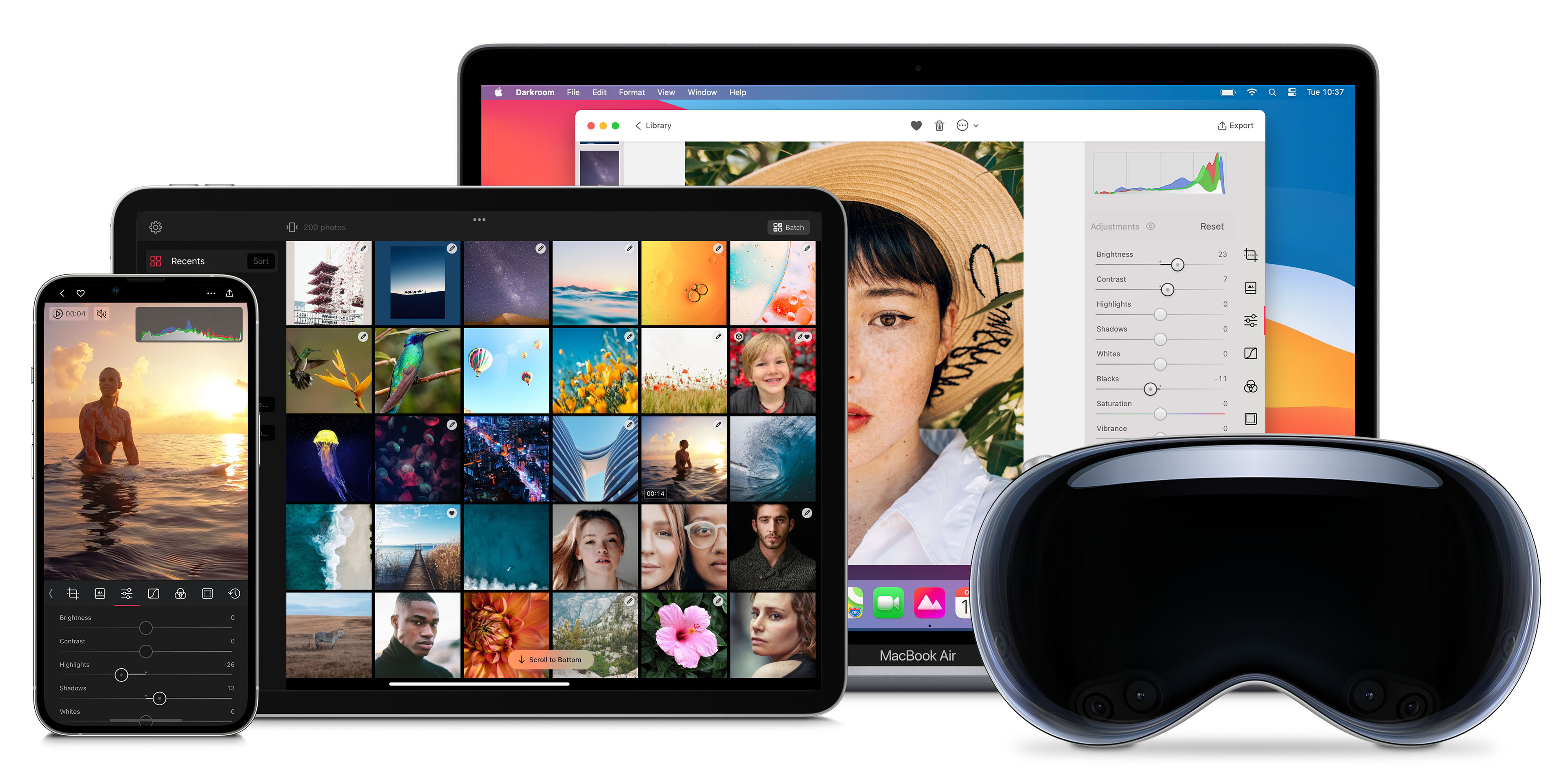
We're a small, independent business that's been around since 2015. From the beginning, we've prioritized creating an exceptional photo editing experience on Apple's platforms that's optimized for people on-the-go. We were thrilled when Apple recognized our efforts by awarding us the prestigious Apple Design Award. You can use Darkroom on your iPhone, iPad, Mac, and Vision Pro, and take advantage of the seamless integration with Apple's iCloud Photo Library and many other unique Apple platform functionalities.
Apple Photos
Apple Photos is the built-in photo app on every iPhone, iPad, and Mac. It manages your entire photo and video library, syncs everything through iCloud, and includes a genuinely good set of editing tools: exposure, color, and light adjustments, a handful of filters, cropping, retouching, and automatic enhancements. It's free, deeply integrated into the system, and the default home for everyone's photos. For quick edits and everyday organization, it's hard to beat — and because Darkroom reads from the same library, the two work hand in hand.
How do they compare?
Since both apps work on top of the same Apple Photos library, the comparison isn't about importing or syncing — it's about how much creative control you get, and how efficient the workflow is. Let's dig in.
Built on the Same Library
Let's start with what they share. Apple Photos is your library, and Darkroom is built directly on top of it. That means there's no importing, exporting, or duplicate libraries to manage — the moment you capture a photo, it's ready to edit in either app. You can start an edit in Apple Photos and refine it further in Darkroom, all on the same image. This is exactly how we like it: your photos stay in one place, and you choose the right tool for the job.
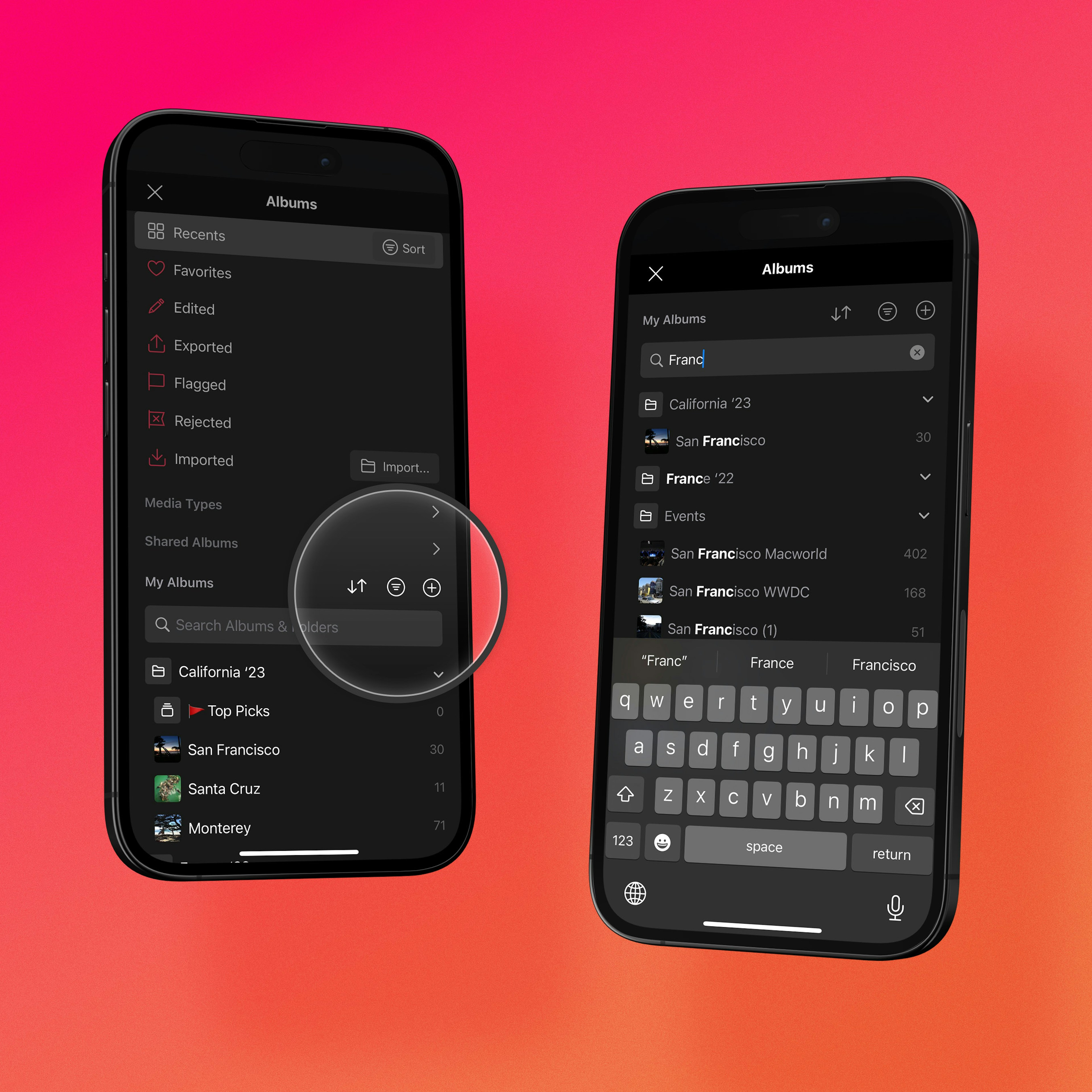
Where Darkroom adds value is in tools built specifically for photographers: flag & reject for fast culling, smart albums that automatically group photos by criteria like RAW or video, and quick organization across iPhone, iPad, and Mac. Apple Photos handles albums and search well, but it isn't designed around the deliberate cull-and-edit workflow that photographers rely on.
Advanced Editing Tools
This is the biggest difference. Apple Photos gives you a solid set of global adjustments and a few filters — perfect for quick fixes. Darkroom offers a full creative toolkit for when you want to craft a specific look: curves, color grading, AI-backed masking, frames, and state-of-the-art highlight and shadow recovery, all with fine-grained control.
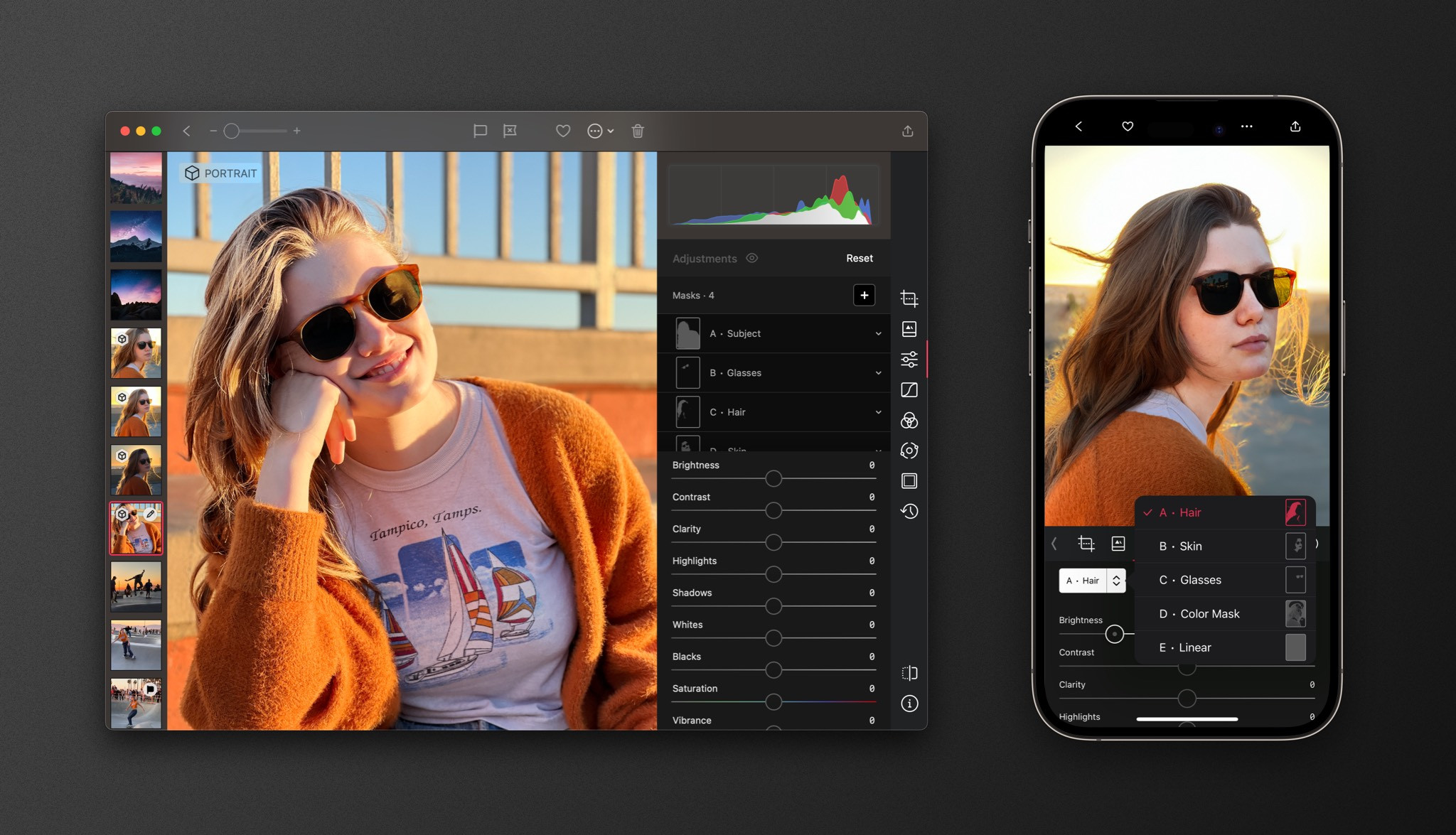
Advanced Masking — Darkroom has advanced masking options that allow you to edit specific parts of your photo with precision. You can use smart masks powered by AI and machine learning to easily select and edit just the foreground or background, the skin or hair on a portrait. Additionally, linear and radial masks are available, and you can even make selections based on depth, luminance, and color ranges. Apple Photos offers some automatic adjustments, but nothing approaching this level of selective control.
Shadow & highlight Recovery — Our shadow and highlight recovery tools are at the cutting edge of the industry – for both JPGs and RAWs. And we don't say that lightly! We're a small, independent business, and we put our hearts and souls into making sure every feature is the best it can be. We don't cut corners or settle for "good enough." If we think it's worth doing, we do it right.
Frames — Don't limit yourself to just a simple border. Instead, fully customize the frame's aspect ratio, inset width, and color to suit your needs. A unique feature is the content-aware color option, which lets you pull a color from your photo and apply it to the frame for a cohesive, polished look — perfect for sharing to Stories.
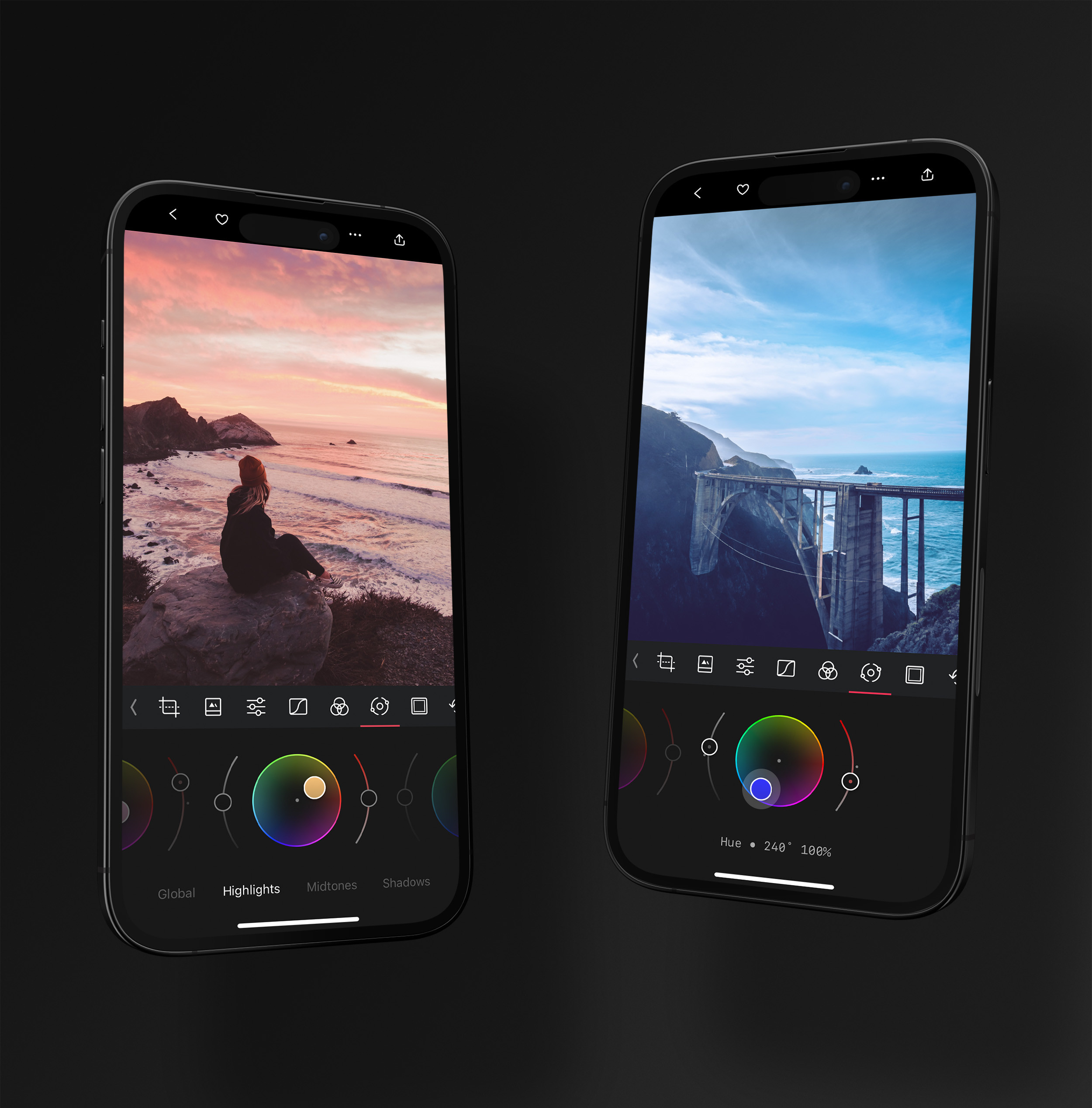
Color Grading — We aren't afraid to try new things and incorporate tools from other domains like video editing. One example of this is our color grading feature. It provides a compact and intuitive interface that makes it easy to develop a unique look for your photo — something Apple Photos simply doesn't offer.
Filters & Presets
Apple Photos includes a small set of built-in filters, and you can copy and paste edits between photos. Darkroom goes much further: alongside building and saving your own presets, Darkroom uniquely provides easy public access to thousands of quality community presets for you to discover, search, and install for free — right inside the apps and on the web. That includes a huge range of presets emulating analog film, as well as countless independent and creative looks made by photographers around the world. Here are some of the most popular analog presets in Darkroom:
Editing Video
Both apps let you make basic adjustments to videos. Darkroom goes further by letting you process your videos with the same tools as your photos — crop, adjust, color grade, apply presets, and add frames — so a clip can carry exactly the same look as the stills from the same shoot. If you want a consistent aesthetic across photos and video, Darkroom has a clear edge.
Native to Apple
Like Apple Photos, Darkroom is proudly Apple-native — that's been our focus since day one. We started off on iPhone, expanded to iPad, then came to the Mac, and are even available in Vision Pro with our compatible iPad app. We use cutting-edge technology like Metal hardware-accelerated rendering, leverage Apple's AI and machine learning advances, and support platform features like Shortcut Automation for batch processing. So you get the same at-home, system-integrated feel as Apple Photos, with a much deeper creative toolset layered on top.
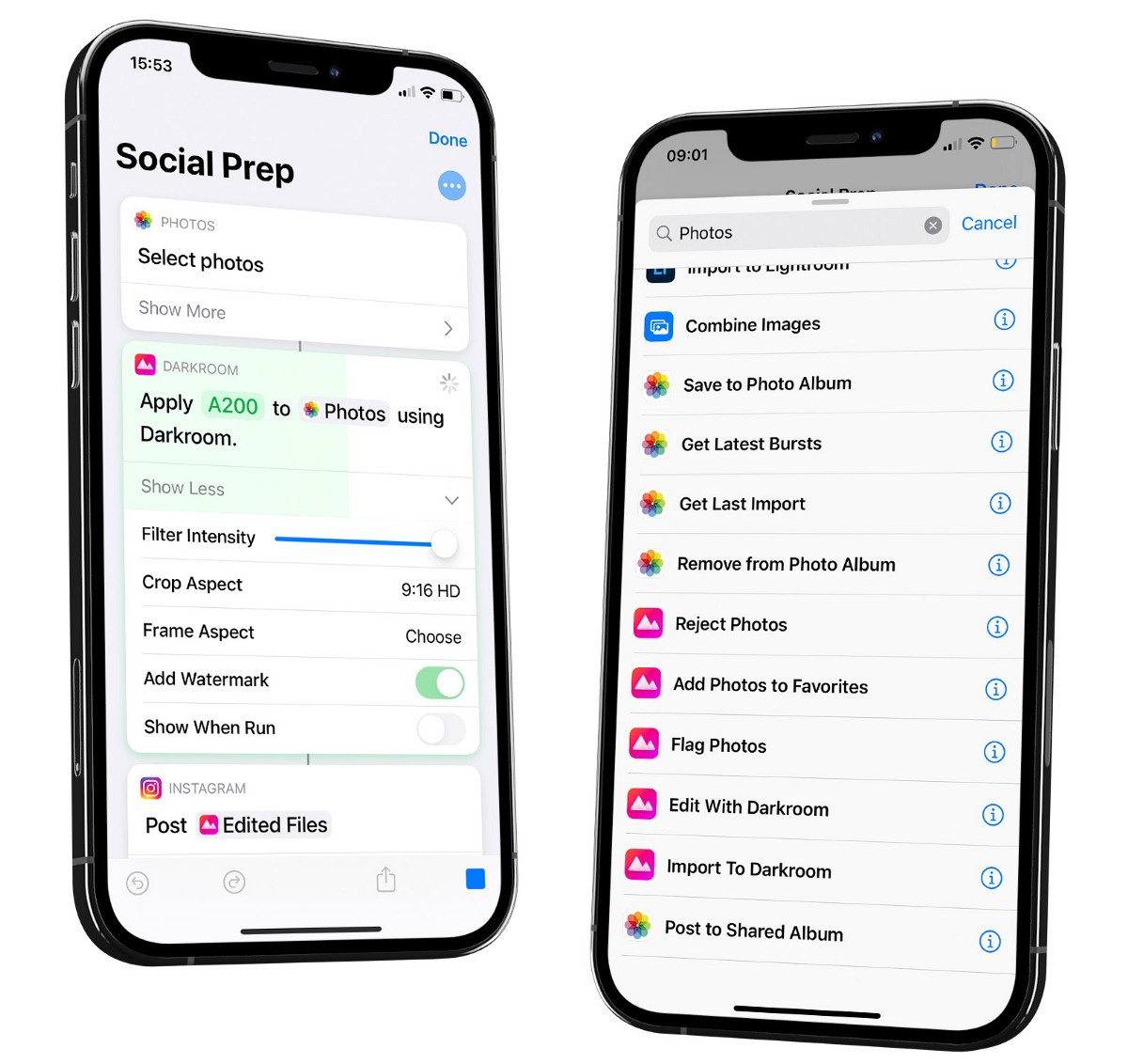
Image Quality, RAW & the Render Engine
Apple Photos does a lovely job with everyday edits, and its automatic adjustments are genuinely good. Darkroom gives you deeper, more deliberate control over the very same files — full RAW and ProRAW editing, plus a fully rebuilt, lossless rendering engine introduced in Darkroom 7 that keeps large RAW files smooth and lets Shadows and Highlights recover more detail than the lighter-touch tools in Photos. Both are Metal-accelerated and Apple-native; Darkroom simply gives you more headroom when a photo deserves more than a quick fix.
Privacy
Here's an honest one: privacy isn't a real differentiator here. Both apps keep your photos in your Apple Photos library, on your devices and your own iCloud — neither uploads your library to a third-party cloud, and Darkroom never uploads your photos to our servers. If privacy is your main concern, you're in good hands with either. The deciding factor between them is capability, not data handling.
Darkroom compared to other photo editors
Curious about how Darkroom stacks up against other popular photo editors? Explore these in-depth comparisons to see which tool best fits your creative needs.
Comparing Darkroom & Lightroom
Discover how Darkroom and Lightroom compare, with an overview of their key features, pricing, and what sets each app apart.
Comparing Darkroom & Photomator
Explore the differences between Darkroom and Photomator, including their features, pricing, and overall user experience.

Comparing Darkroom & Capture One
See how Darkroom and Capture One compare, from RAW editing and pricing to workflow and platform support.

Comparing Darkroom & VSCO
Comparing Darkroom and VSCO, providing an overview of each app and their key differences, features, and pricing.
Comparing Darkroom & Snapseed
Explore the differences between Darkroom and Snapseed, including their features, pricing, and overall user experience.
The verdict: which should you choose?
This isn't really an either/or — the two are designed to work together:
- Stick with Apple Photos if your editing is mostly quick crops, light adjustments, and the occasional filter. For a lot of people, that's genuinely all they need — and it's free and already installed.
- Add Darkroom when you want to go further: curves, color grading, AI-powered masks, frames, thousands of free community presets, full RAW and ProRAW control, and video editing — all without leaving the library you already use.
The honest moment to reach for Darkroom is when you catch yourself wishing Apple Photos went deeper. And because Darkroom edits your Apple Photos library directly, trying it costs you nothing and changes nothing: download it for free and every photo you own is already there, ready to edit, in about two minutes. You can even start an edit in Photos and finish it in Darkroom.
Pricing Comparison
Apple Photos is free and included with every Apple device — you can't beat that, and it's a great reason to start there. Darkroom is also free to download, with a genuinely capable free tier, plus an affordable subscription and a one-time purchase option if you want the full creative toolset. Because Darkroom builds on the same library Apple Photos uses, adding it costs you nothing in terms of workflow disruption — you simply gain a more powerful set of editing tools and thousands of free community presets whenever you need them. If you've outgrown the editing tools in Apple Photos, Darkroom is the natural next step.
Affordable Memberships
Go premium with Darkroom+ and enjoy full creative control while editing.
Yearly
$3.33/month · Save 67%
Full access with a free trial and Family Sharing. Our most popular plan.
Start TrialMonthly
$119.88/year · Billed monthly · No trial
Full access with the flexibility to cancel anytime.
SubscribeStarter
No time limit
Try every premium tool for as long as you like. Export needs Darkroom+.
DownloadOne Darkroom+ membership unlocks iPhone, iPad, Mac, and Vision Pro. Full access for a fraction of a Lightroom subscription — or pay once and own it. Compare Darkroom with other editors →
Frequently Asked Questions
Is Darkroom free?
Darkroom is free to download and includes a capable free tier. For the full toolset, Darkroom+ is available as an affordable subscription or a one-time purchase.
Does Darkroom replace Apple Photos?
No. Darkroom works on top of your Apple Photos library rather than replacing it. Apple Photos stays your library and home for everything; Darkroom is the more powerful editor you reach for when you want more control.
Do I need to import or move my photos?
No. Darkroom edits your Apple Photos library directly, so there is nothing to import, upload, or migrate. Every photo is ready to edit the moment you open the app.

