Settings
Settings is where you teach Darkroom how you want to work. It's less about editing a single photo and more about the defaults that quietly shape every session — what format your exports take, whether location data leaves your device, which app icon greets you on the Home Screen, and where your membership stands. Set these once and the rest of the app gets out of your way.
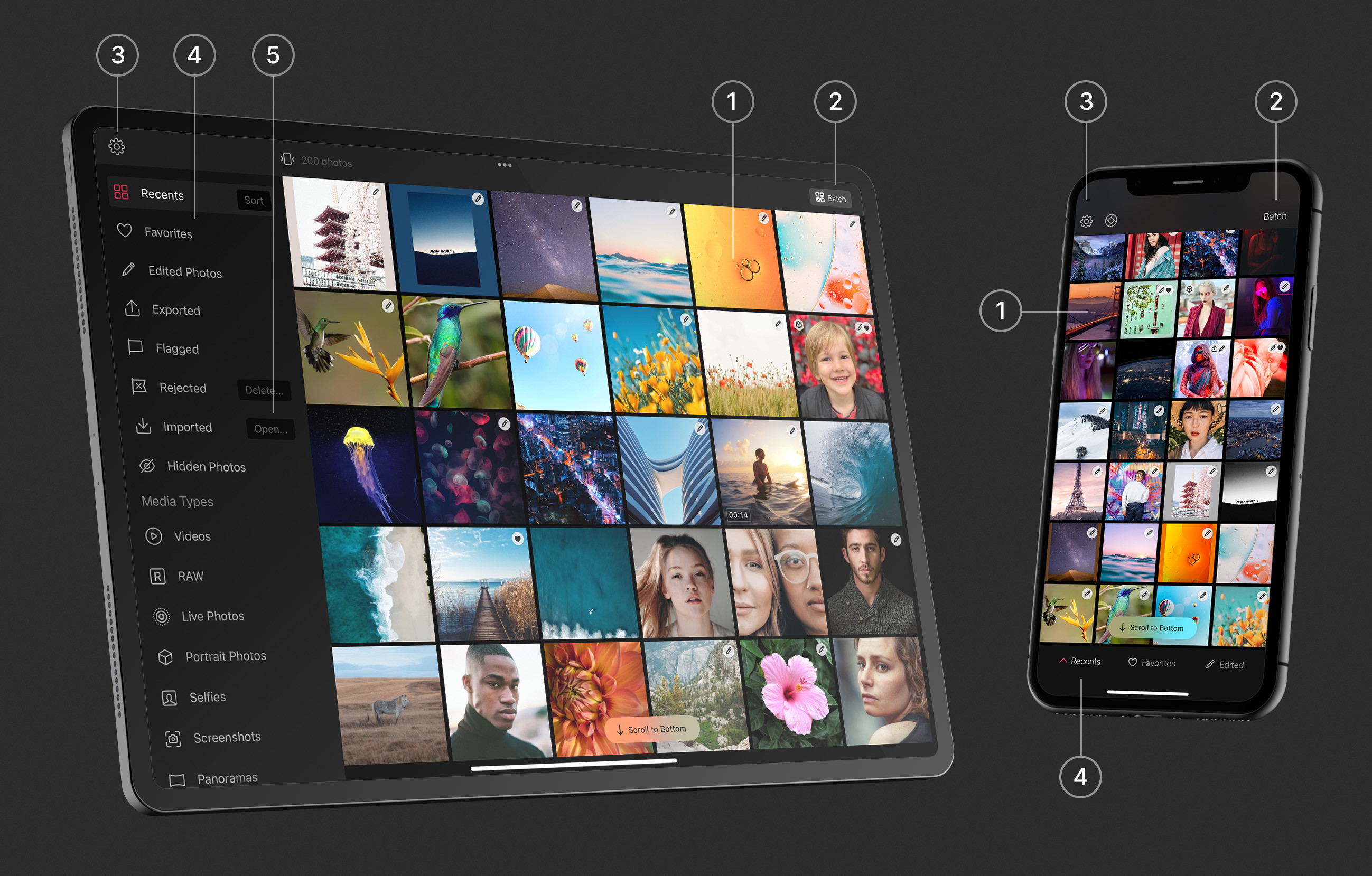
You'll find them in the natural spot for each platform: on iPhone, iPad, and Vision Pro, tap the gear icon in the top-left of the library grid; on Mac, open the Darkroom menu and choose Settings…. It's worth a slow scroll the first time — there are more useful options tucked in here than most people expect.
Your membership
The top of Settings is home base for Darkroom+. It shows your current membership status and gives you a place to unlock Darkroom+ if you're still on the free tier, restore a previous purchase when you've moved to a new device or signed in with a different Apple ID, and redeem an offer code from a promotion. Billing itself is handled by Apple, so if access ever looks wrong, restoring here is the first thing to try.
The Membership pane also handles the awkward cases without sending you to the App Store: switching from a Monthly to a Yearly plan, resolving a billing issue when Apple can't process a renewal, and telling you plainly when your access is shared with you through Family Sharing. You can also ask to be reminded before a trial or membership expires. It's available on Mac as well as iPhone, iPad, and Vision Pro.
Export defaults
Most of Settings is given over to Export Options — the same controls you can reach from the Export view, gathered in one place so you can set sensible defaults once instead of fiddling with them on every share. For the full reasoning behind each choice, see Export Settings; in short, this is where you decide:
- Photo format — JPEG (at 80%, 95%, or 100% quality), HEIF (likewise), PNG, or TIFF. HEIF gives you smaller files at the same quality; JPEG is the safe, universally compatible choice.
- Video format — H.264 or HEVC, each at a few quality levels. HEVC is more efficient, H.264 is more broadly compatible.
- Metadata — whether to embed location data (off by default, to keep your whereabouts out of files you share) and whether to include a small Darkroom attribution.
- Copyright metadata — your name and a copyright notice, written into the file's EXIF data to discourage uncredited reuse.
- Watermark — a reusable text or logo mark applied on export.
- Hashtag sets (iOS) — saved groups of hashtags you can copy to the clipboard as you export, to speed up posting.
Look & feel
A second cluster of settings is about the app itself rather than your output. You can turn the Histogram on and decide whether it shows clipping indicators, so you always know when highlights or shadows are pushed past the edge. You'll also find a Screenshots option, controls for the partner Camera App that appears above your library, and RAW + JPEG handling, which decides whether Darkroom prefers the RAW or the JPEG variant when a photo was captured as both.
Light and Dark mode
Appearance controls how Darkroom itself looks. You can lock the interface to Light or Dark, or let it follow your system setting — a dark canvas keeps your eyes on the photo for evening editing, while light mode can read better in a bright room.
App icon
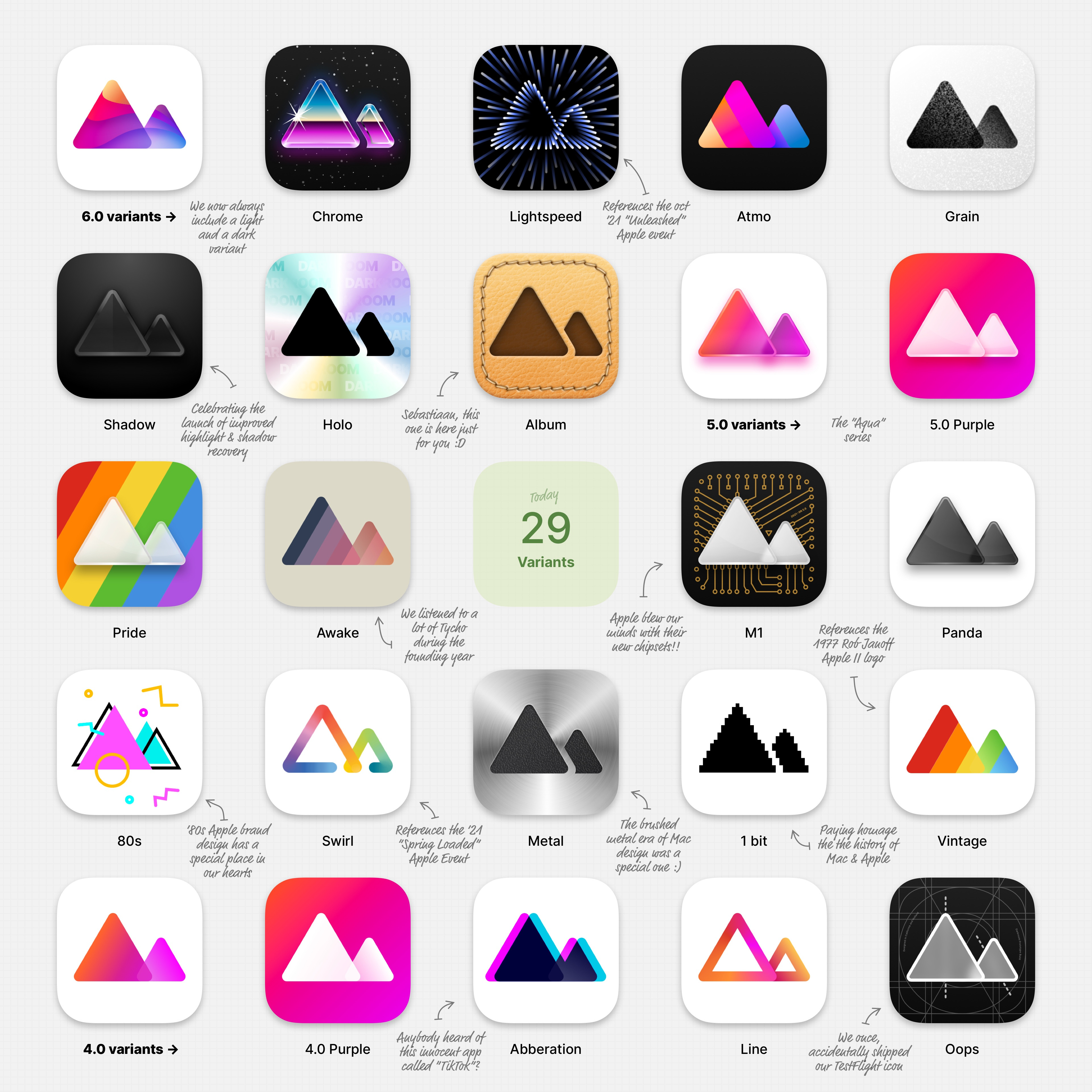
Appearance is also where you change Darkroom's app icon. As a Darkroom+ perk, you can swap the Home Screen icon for any of the dozens of variants we've designed over the years — from the clean Shadow and Panda monochromes to Pride, Vintage, the brushed-metal M1, and even a pixel-art 1-bit throwback. On iPhone and iPad, open Settings, tap App Icon, and pick the one you want. On Mac the icon can't be changed from inside the app, so we put together a manual guide for Mac app icons.
Maintenance and the boring-but-useful
At the bottom sit the housekeeping tools. Clear Photo Cache and Clear Sync Cache reclaim storage and resolve the occasional stale-thumbnail or sync hiccup without touching your actual photos — your originals always live safely in iCloud Photos. (If presets are syncing oddly between devices, Clear Sync Cache is the first thing to try.) And the Build Number is the small detail worth knowing about: when you write in with a question, it tells us exactly which version you're running.
For an actual bug, though, don't retype any of this — use Report an Issue from the ••• action menu instead. It sends straight from the app with the diagnostic logs attached, which tells us far more than a description can, and you can leave your email address if you'd like us to follow up.
Related
- Export Settings — the full guide to format, metadata, and quality choices
- Watermark — set up reusable text or logo marks
- Darkroom+ Membership — pricing, restoring purchases, and family sharing
- Camera Integrations — connect partner camera apps