Export, Save or Share
Every edit you make in Darkroom is non-destructive — rendered live on top of your original rather than baked into it. That's what makes experimenting safe, but it also means Apple Photos keeps showing the unedited photo until you export. The preview inside Darkroom is not the library item, and it is not what the share sheet or your other devices see. The Export view is where a live edit becomes a file the rest of the world can see.
It's built to keep your rhythm fast — edit, review, export, move on. Open any photo or video in the editor and tap the share/export action to get here. You don't even have to enter a full edit session first: the same export actions live in the library context menus (tap-and-hold on iPhone or iPad, right-click on Mac), which is handy when you just want to push an already-finished shot out the door.
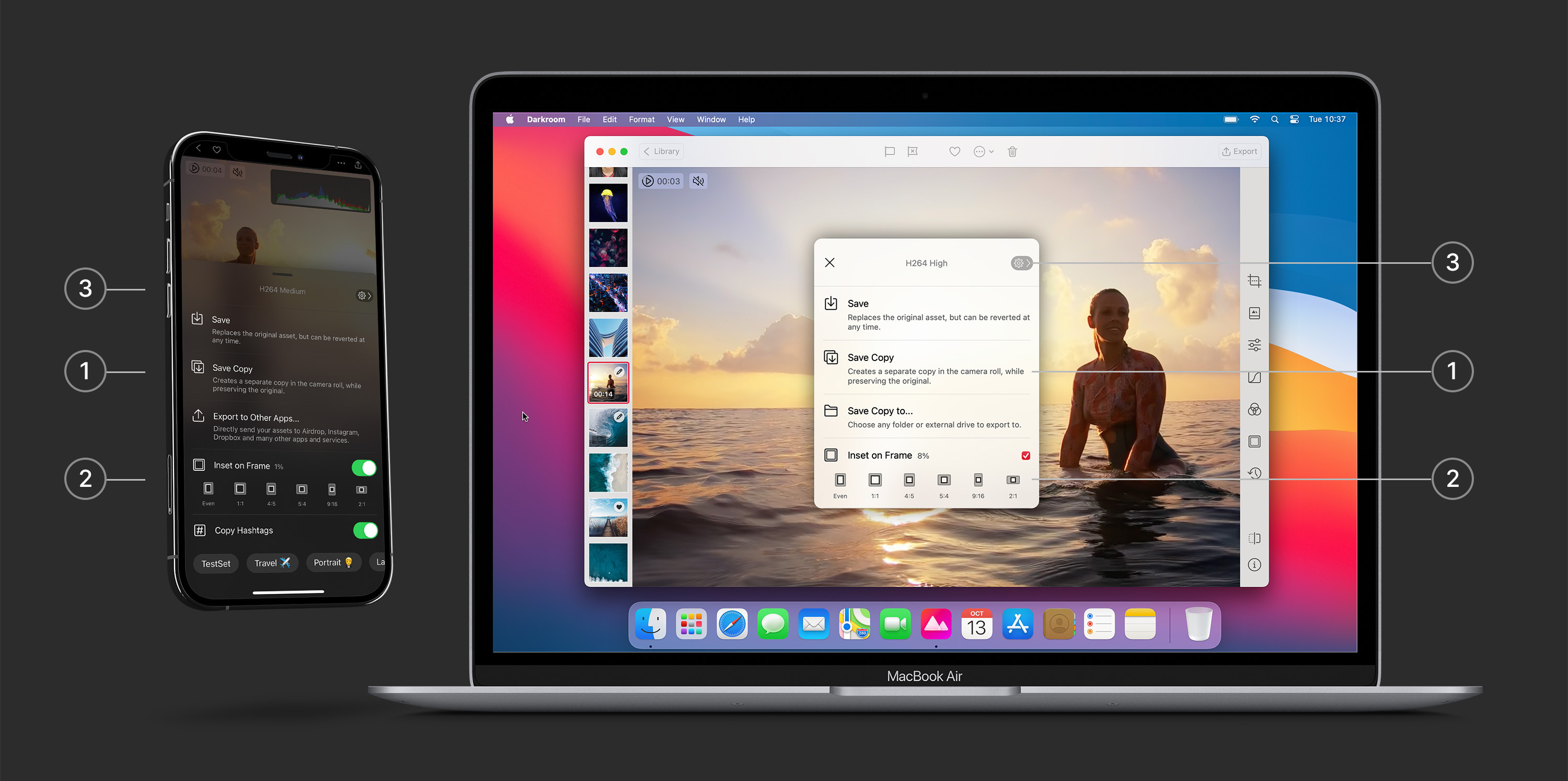
Choosing how your edit lands
The first decision is what kind of file you want out, and it usually comes down to two options. Save (Modify Original) writes your latest edit back to the existing library item without spawning a duplicate — still reversible later in Apple Photos, and the cleanest choice when you're culling and delivering a lot of images and don't want your library cluttered with copies. Save Copy creates a separate exported file instead, which is what you want when the same source needs to exist in more than one form: a watermarked version and a clean one, a full-resolution master and a web-sized share. The original library item is unchanged, and the copy is added to the albums that already contain the original. To drop that extra file, delete it from the library.
From the same screen you can also share the result straight into another app or service — Messages, Mail, Files, a social app, or a Shortcuts-based workflow — so the exported file goes exactly where it's headed next without a detour through your library. Need a physical copy? Printing sits alongside those options too — on Mac via File → Print, and on iPhone or iPad through the system share sheet → Print.
The export-time extras
Two finishing tools sit right here so you don't have to leave the flow. Add Frame applies an export frame in the aspect ratio you've set up, which is the quickest way to get story- and feed-ready layouts; Darkroom reuses your most recent frame inset, so a campaign stays visually consistent across a batch. On iOS, Copy Hashtags drops a saved hashtag set onto your clipboard as you export, so posting is one paste away. And Export Options opens format, metadata, watermark, and quality settings for a last check before the file is written.
Fitting it into a workflow
For day-to-day sharing the path is short: finish the edit, open Export, pick Save Copy or Save, and tap your destination. If you post often, fold Add Frame and Copy Hashtags into that same pass so there's nothing left to do once you're in the posting app.
At higher volume, lean on Save / Modify Original while culling and delivering many assets — it keeps the library clean — and pair the Export view with Batch Actions to process a consistent set in one go. For genuinely repeatable production, Shortcuts automation can chain editing and export together so the whole handoff runs with a single tap. This export flow extends to video as well, introduced when video editing came to Darkroom — the same actions, the same options, just longer renders.
One thing worth remembering: if an export feels slow, Darkroom may be pulling the full-resolution original down from iCloud before it can process it. And for anything you're publishing, glance at your metadata settings first so you're not sharing location data you'd rather keep private.
Undo a Save
Reset Edits — in History, or from the ••• menu — clears the sliders in Darkroom. It does not remove a version you already wrote into Apple Photos.
Save asks Photos to keep a new version of that library item. To put the pre-export photo back:
- Open the photo in Apple Photos, not in Darkroom.
- On iPhone or iPad, tap Edit, then Revert to Original. Apple's guide is Undo and revert photo edits on iPhone.
- On Mac, choose Image → Revert to Original.
The adjustment stack on the device where you edited is separate. You can open the photo in Darkroom, keep changing it, and Save again. Another device only received the exported image, not those sliders.
Save Copy adds a new photo and never touches the original. Delete that photo from your library if you don't want it.
Frequently Asked Questions
Why doesn't Apple Photos show my edit?
Photos shows the file in your library, not Darkroom's live preview. Until you export, Photos, the share sheet, and your other devices still show the original. Choose Save to update that item, or Save Copy to add a new photo beside it.
How do I undo a Save?
Reset Edits clears the sliders in Darkroom. It does not remove a version already written into Apple Photos.
Open the photo in Photos, tap Edit, then Revert to Original. On Mac, choose Image → Revert to Original. Save Copy leaves the original alone — delete the new photo if you don't want it.
Related
- Export Settings — format, metadata, copyright, and quality choices
- Watermark — add visible attribution on export
- Batch Actions — export many photos at once
- Shortcuts Automation — automate edit-and-export pipelines