Presets
A preset is a saved recipe of edits — a whole look you can apply to any photo in a single tap, then fine-tune for the shot in front of you. They're the fastest way to get a strong result, and the backbone of a consistent style across a trip, a client shoot, or an entire feed. Crucially, presets in Darkroom stay transparent: after you apply one, every adjustment it made is still visible and fully editable, so a preset is a starting point you can build on, never a locked filter.
You'll find Presets in the Edit view toolbar, with your built-in presets, My Presets, and installed Community presets all in one place. Apply one, then adjust — and because the edits are open, you can tap into any tool to see exactly how a look was built. That transparency makes presets one of the best ways to learn: dissect a preset you admire and you'll see precisely which Curves, Color Grading, Selective Color, and Mask moves create it.
Creating your own
The mechanics are quick: make your edits, open the Presets tool, tap Create a New Preset, and name it. Keep editing afterward and a • appears next to the name to show the preset can be updated — tap the ••• actions and choose Update.
The one habit that makes presets portable: build them from the stylistic tools — Curves, Color Grading, Selective Color, Masks — and leave per-photo technical corrections like exposure and white balance out. That way the preset lays its look over any image without fighting the lighting each photo needs. From there, a base style plus a few variants (brighter, darker, higher-contrast) covers far more situations than one preset trying to do everything. For the full walkthrough, see the Create a Preset guide.
Managing your list
As your library grows with your own creations and community installs, curation keeps it usable. From the Presets tool you can favorite the ones you reach for, reorder them for quick access, hide the sets you don't use, and rename anything. A light naming convention helps once you have variants — Darkroom's bundled presets use a letter for the set and numbers for variants (C100, C110), but short, memorable names work just as well for standalone looks.
Sharing
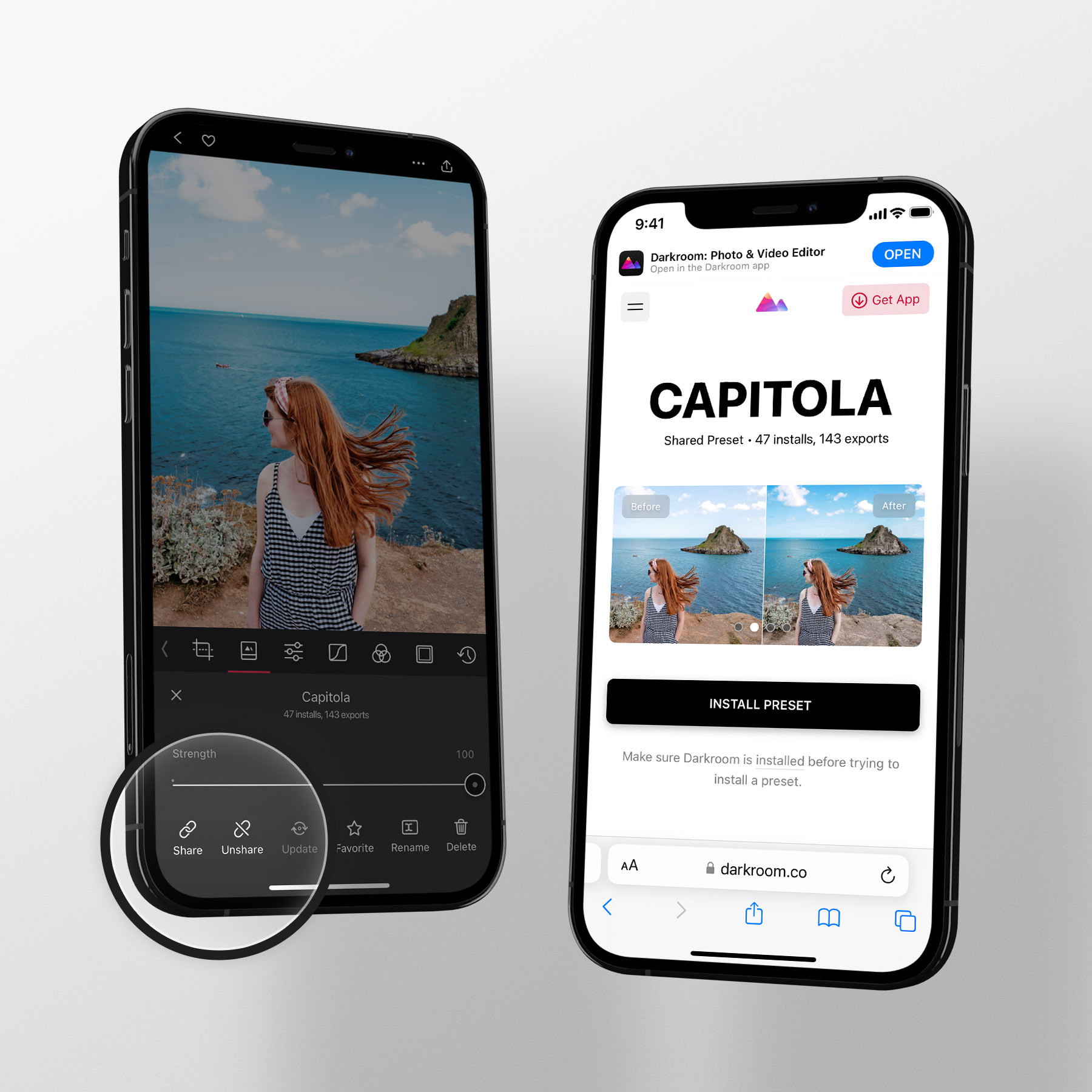
Any preset can become a link. Select it, tap •••, and choose Share — Darkroom generates preview images across a range of scenes and gives you a web link anyone can open, whether or not they have the app. They preview and install with a single tap; there are no files to host, download, or import, and you'll see how many times your preset has been installed and exported. To change a shared preset, unshare it, update, and share again — the original link is kept.
Discovering community presets
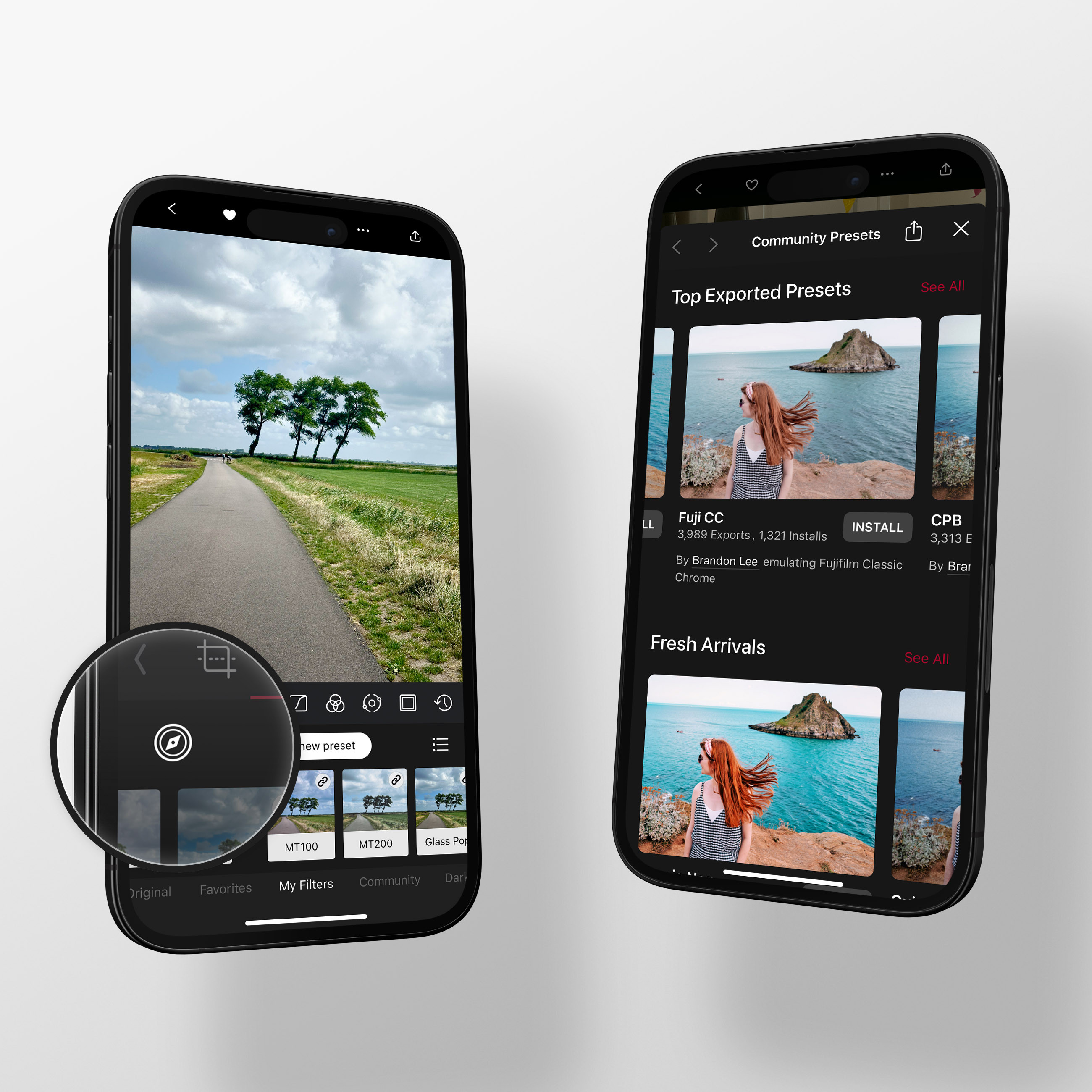
Tap the compass icon to open Community Preset Discovery on iPhone, iPad, and Mac — or browse it on the web at darkroom.co/presets. Dynamic collections like Top Exported, Fresh Arrivals, and Most Installed surface what photographers worldwide are actually using, alongside hand-curated sets like Analog Film Favorites and Independent Favorites. Search by film stock or name to find a specific look fast. As with your own, every community preset is transparent — install one and study how it's made.
Installing from the website
On darkroom.co/presets, pick a look and tap Install. If Darkroom is already on the device, that opens the app and adds the preset to Community. If it isn't, the link takes you to the App Store first. You can browse the same catalog from inside Darkroom: open the Presets tool and tap the compass icon.
Synced across your devices
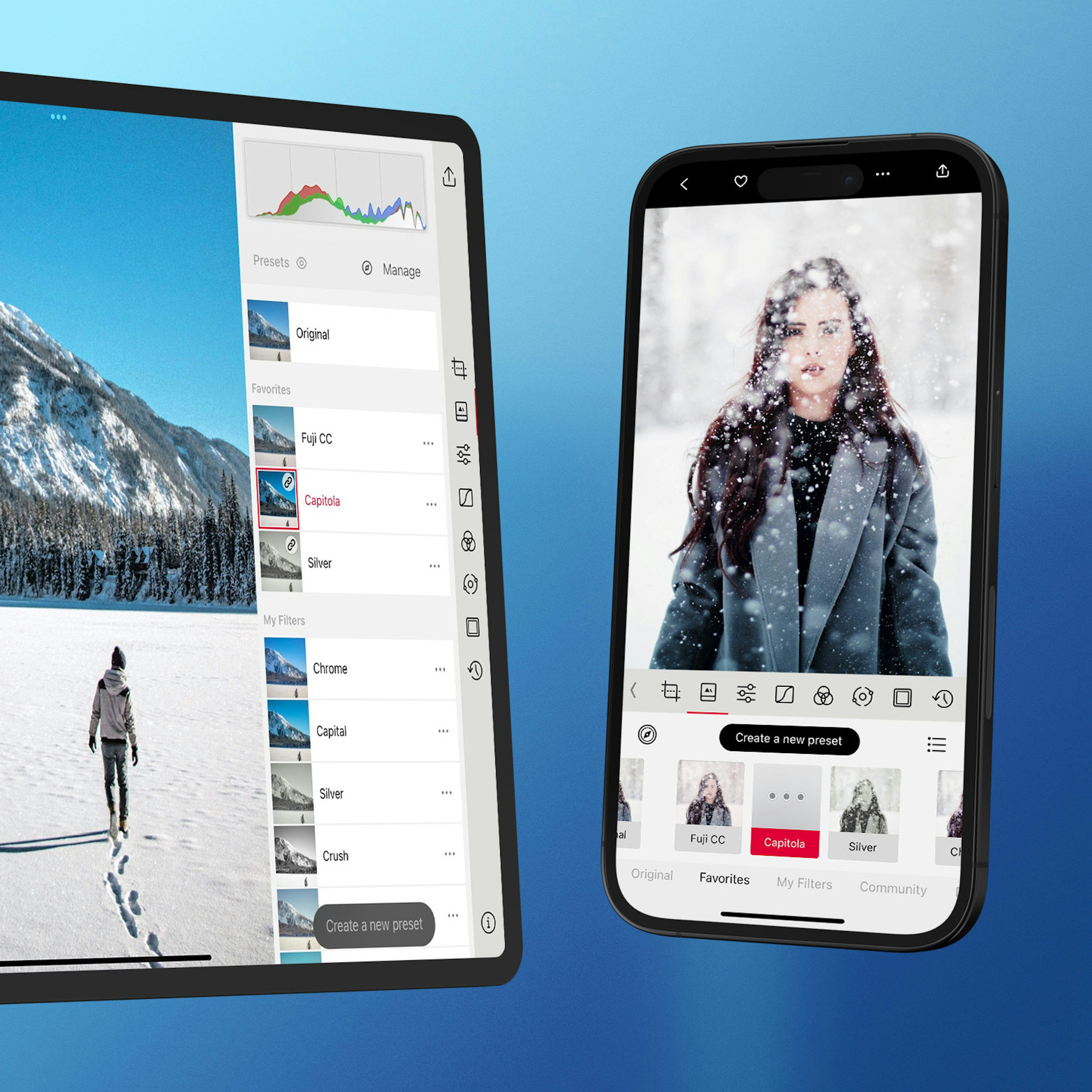
Your presets — custom and community — sync automatically across iPhone, iPad, and Mac, including your favorites, arrangement, and hidden sets. It's built on iCloud, needs no account, and works out of the box, so the look you save on your phone is waiting on your Mac.
Frequently Asked Questions
How do I install a preset from the website?
Open darkroom.co/presets, pick a look, and tap Install. That opens Darkroom and adds it to your Community list — or sends you to the App Store first if you don't have Darkroom yet. The same catalog is available in-app behind the compass icon in the Presets tool.
My presets aren't syncing between my devices.
Preset sync runs on iCloud with no account needed, and carries your custom and community presets along with favorites, order, and hidden sets. If a device is out of step, open Settings and use Clear Sync Cache, then give it a moment to re-sync. Confirm both devices are signed into the same Apple ID with iCloud Drive enabled.
I made more edits after applying a preset. How do I update it?
A • appears next to the preset name when there are changes it doesn't yet include. Tap the ••• actions and choose Update to fold them in.
Why does my preset look wrong on other photos?
It's almost always because per-photo corrections got baked in. Build presets from the stylistic tools — Curves, Color Grading, Selective Color, Masks — and leave exposure and white balance out, since those need to differ for every photo. Test on several images in different light before you settle on one.
Do I keep my presets if my membership lapses?
Yes. Presets you've created or installed stay exactly where they are. You'll need an active Darkroom+ membership again only to export photos that use premium edits.
Related
- Create Your Own Custom Preset — the full preset-building guide
- Share Your Presets from Darkroom
- Discover Community Presets
- Preset Sync & Backup