Portrait Editing with Masks
A great portrait draws attention to one thing — the subject's expression, their eyes, the quality of light on their face. Everything else in the frame should support that, not compete with it. The trouble is that global adjustments treat the whole image equally: brighten the face and you blow out the background, soften skin and you lose the crispness of hair and clothing. Masks solve this by letting you edit each part of a portrait on its own terms, so the light, color, and texture all point the viewer toward the person.
This is the workflow to reach for whenever the face is underexposed by backlighting or harsh sun, when a busy background pulls focus, or when skin tones simply need a little care. Get the overall exposure roughly right first — masks are refinements, not your primary exposure fix — then open Masks in the Edit view toolbar and build the portrait up area by area.
Brighten the face
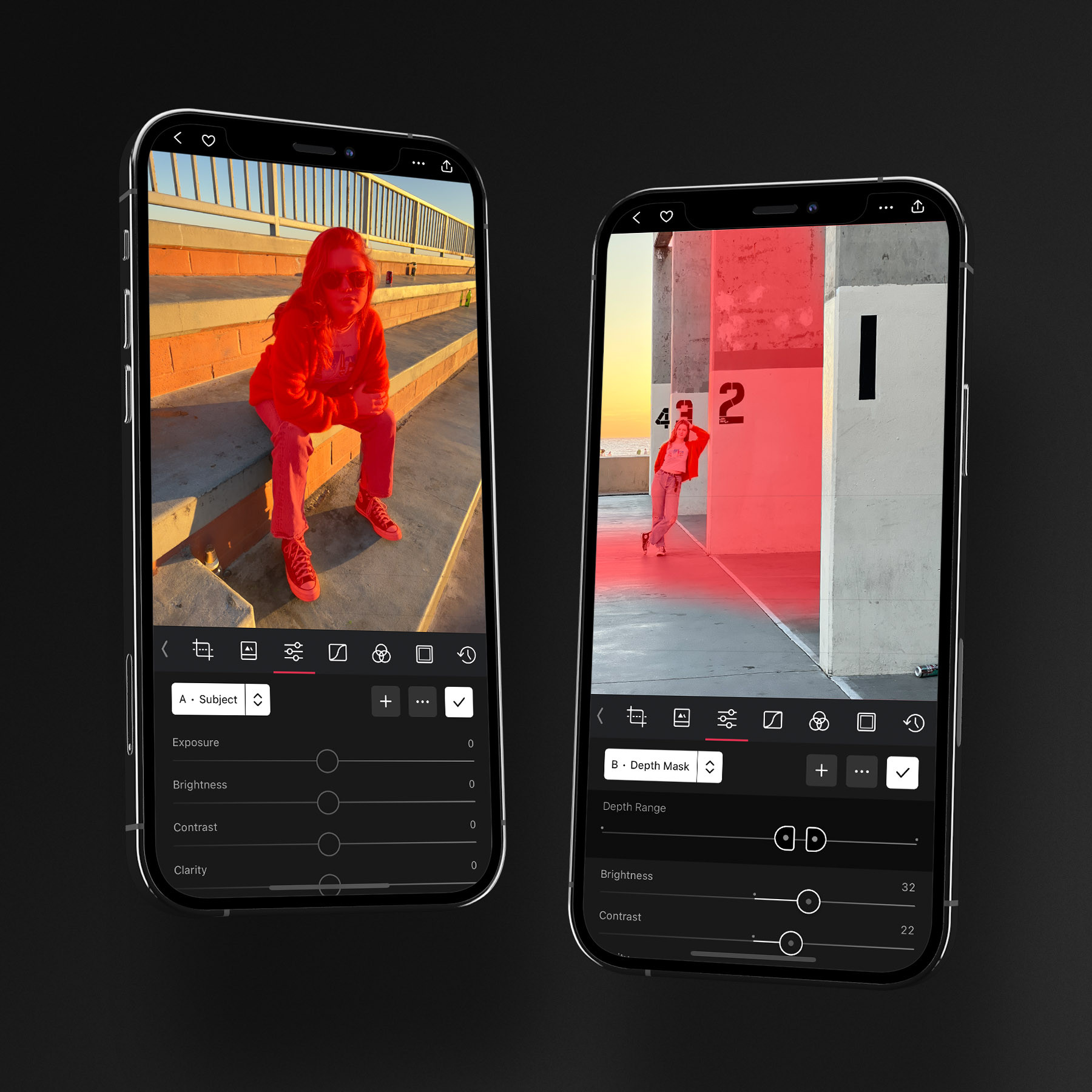
Start by making the face the brightest, most inviting part of the frame; that's what naturally draws the eye. Add a Subject mask and Darkroom's on-device AI selects the person for you. If that selection is broader than you want — catching the full body when you only care about the face — a Radial mask centered on the face gives you tighter control.
Inside the mask, lift Exposure until the face reads clearly, open the darker pockets under the chin, eye sockets, and jawline with Shadows, and ease Highlights down a touch if the forehead or cheekbones are catching too much light. You're recreating what a fill light or reflector would do in a studio: soft, even illumination across the face. Keep the neck and ears inside the adjustment too — a bright face above a dark neck reads as unnatural immediately.
Soften skin without erasing it
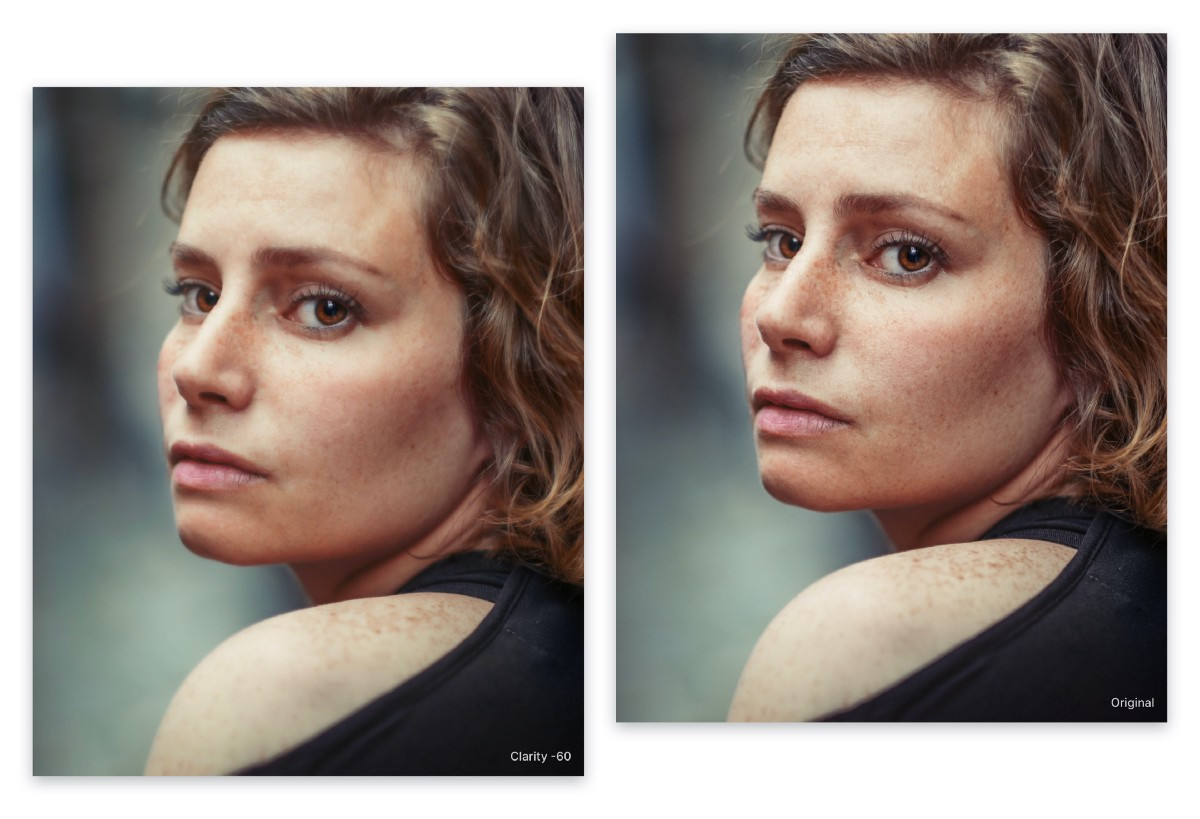
Most portraits benefit from a subtle skin softening that reduces the look of pores and small blemishes without turning skin to plastic. The quickest route is to lower Clarity inside your Subject or Radial mask. Clarity controls midtone contrast, so pulling it back smooths fine texture while preserving the overall structure of the face. On Portrait and ProRAW photos you can go further with the Skin smart mask, which isolates skin and leaves eyes, eyebrows, lips, and hair sharp — exactly the separation you want.
The restraint matters more than the technique. The edit should be invisible: the viewer should simply think the subject has great skin, not notice a beauty filter. Real skin has texture, and the goal is to quiet distractions, not wipe out detail.
Separate the subject from the background
With the subject looking its best, push the background back to create separation. The fastest way is Duplicate and Invert on your Subject mask — that hands you an exact inverse covering everything that isn't the subject. (If Darkroom detects a Background mask directly, that works just as well.)
Inside the background mask, lower Exposure to darken it, drop Saturation so its colors stop competing, and, if you like, ease Sharpness down to suggest the shallow depth of field of a wide-aperture lens. A brighter subject against a darker, muted background is the dimensional separation you see in professional portraiture. Go gently at the edges, though — pushed too far, AI masks with imperfect boundaries can leave a faint halo around the subject.
Grade warm subject, cool background
Color grading becomes far more powerful when applied selectively. The classic portrait move is warm subject, cool environment — a complementary split that adds depth and pulls the subject toward the viewer. Inside the Subject mask, nudge Temperature warmer (or add subtle warmth with Color Grading) to bring life to skin tones; inside the background mask, shift Temperature cooler. The contrast does the work.
You can also grade globally with the Color Grading wheels: push Highlights toward warm orange to catch the bright areas of skin and Shadows toward cool blue or teal to settle the darker background, using the Balance slider to decide where the split falls. Selective grading rides on top of your overall white balance, so if the white balance is off, correct it globally before layering warm-cool adjustments on top.
Finish on the eyes
The eyes anchor every portrait, and even small enhancements make them more expressive. Place a small Radial mask over the eyes — just large enough to cover both and the bridge of the nose — and apply the lightest touch: a hair of Exposure to brighten the irises and add a catchlight, a little Contrast to define the iris pattern, a gentle Sharpness boost for crispness, and only a whisper of Saturation, since over-colored eyes look artificial fast.
These adjustments should be felt, not seen. If you can point to the mask boundary, you've gone too far. The whole portrait works the same way: a well-placed Subject mask and its inverted copy usually carry most of the result, three or four masks is plenty, and toggling your edits on and off often is the surest way to keep an over-edited portrait honest.
Related
- Masks & Local Adjustments — the full mask toolset behind this workflow
- Make Local Adjustments with Masks — the original feature tour
- Clarity in Darkroom — how Clarity smooths skin while keeping detail
- Color Grading Wheels — for the warm-cool split