Your First Edit
Editing a photo doesn't have to be complicated. Darkroom is designed to let you go from opening a photo to sharing a finished edit in just a few steps, no imports required. Everything happens right inside your Apple iCloud Photos library.
This guide walks you through a complete first edit: choosing a photo, applying a preset, making manual adjustments, cropping, and sharing or saving. By the end, you'll understand the basic editing workflow and feel confident exploring further on your own.
Step-by-Step Workflow
1. Choose a Photo
Darkroom works directly with your iCloud Photos library. There's no import step required (although you can) — your entire photo library is already there when you open the app.
When your open the app your recent photos are displayed in the grid. You can scroll through your recent images or use albums to find something specific. When you see a photo you'd like to edit, tap or click it to open it in the editor.
A few good first choices:
- A landscape or outdoor shot — these respond well to contrast and color adjustments, so you'll see dramatic results quickly.
- A portrait in natural light — exposure and temperature tweaks can make a big difference in how skin tones look.
- A photo you like but feel is a little flat — most smartphone photos benefit from even basic adjustments.
2. Apply a Preset
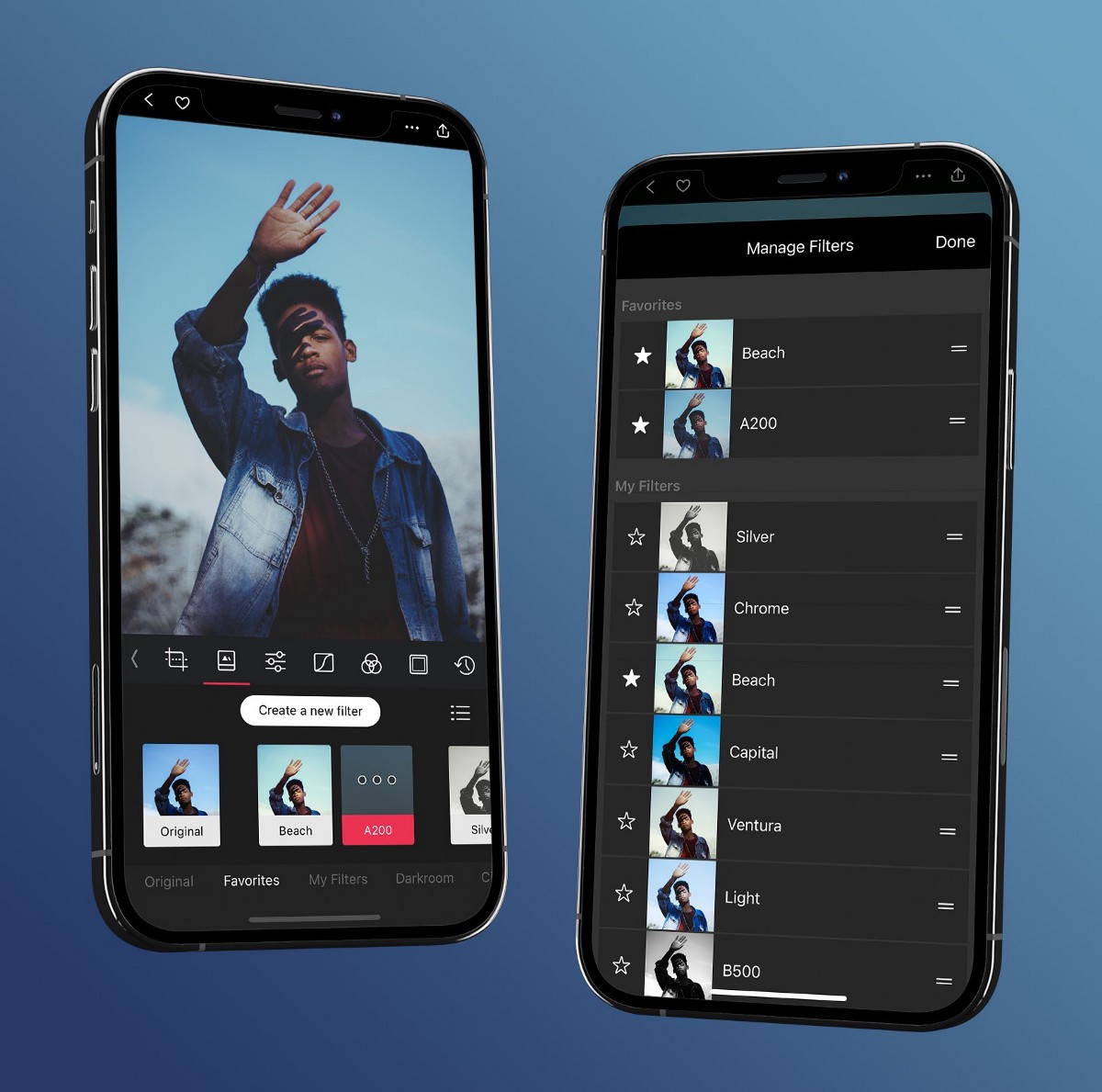
The fastest way to transform a photo is with a preset. Presets are saved combinations of adjustments — like a recipe for a particular look — that you can apply in a single tap.
Open the Presets tool and browse the available styles. Darkroom comes with a set of free and premium built-in presets, and you can explore thousands more in Community Presets. Swipe through the options, and when you see a look you like, tap install to use it.
A few things worth knowing:
- Presets are non-destructive — applying a preset doesn't permanently change your photo. You can switch to a different preset, adjust the settings it applied, or remove it entirely at any time.
- Presets are a starting point — think of them as a foundation. Apply one to set the mood, then refine the individual adjustments to match your taste and the specific photo.
- Every preset is transparent — you can see exactly which adjustments a preset made and tweak any of them. This makes presets a great way to learn how different looks are built.
If you'd rather start from scratch, skip this step and move straight to manual adjustments.
3. Adjust the Image
Whether you started from a preset or from scratch, the Adjustment Sliders are where you fine-tune the look of your photo. Open the sliders and start with the basics:
- Brightness — controls the overall brightness of the image. Push it up if the photo is too dark, pull it down if it's too bright.
- Contrast — increases the difference between light and dark areas. A moderate boost makes most photos look more vivid and defined.
- Saturation — controls color intensity. A subtle increase makes colors richer; pulling it down mutes them toward monochrome.
- Temperature — shifts the overall color between warm (yellow/orange) and cool (blue). Use it to correct white balance or to set a mood.
Once you're comfortable with those, explore the tonal controls:
- Highlights & Shadows — these adjust the brightness of the bright and dark areas independently. Pulling highlights down recovers detail in bright skies and windows. Lifting shadows reveals detail in dark areas without affecting the rest of the image.
- Blacks & Whites — these control the absolute endpoints of the tonal range. Crushing the blacks (pulling them down) creates deep, rich shadows. Pushing whites up adds clean, bright highlights.
Use the Histogram at the top of the editor to guide your adjustments. The histogram shows the distribution of tones in your image from dark (left) to bright (right). If the graph is bunched up on one side, it means the image is underexposed or overexposed. As you adjust sliders, watch the histogram spread out — a well-distributed histogram generally means a well-exposed image.
Don't worry about getting everything perfect. The goal of a first edit is to make the photo feel closer to what you saw when you took it — or to push it somewhere more interesting. A good habit is restraint: if an adjustment looks obviously "edited," pull it back and let the photo breathe. Tap and hold the image to compare against the original as you go, and try to judge your edit on a consistent screen brightness rather than in direct sunlight, where the display auto-brightens and throws off your sense of exposure and color.
4. Crop and Straighten
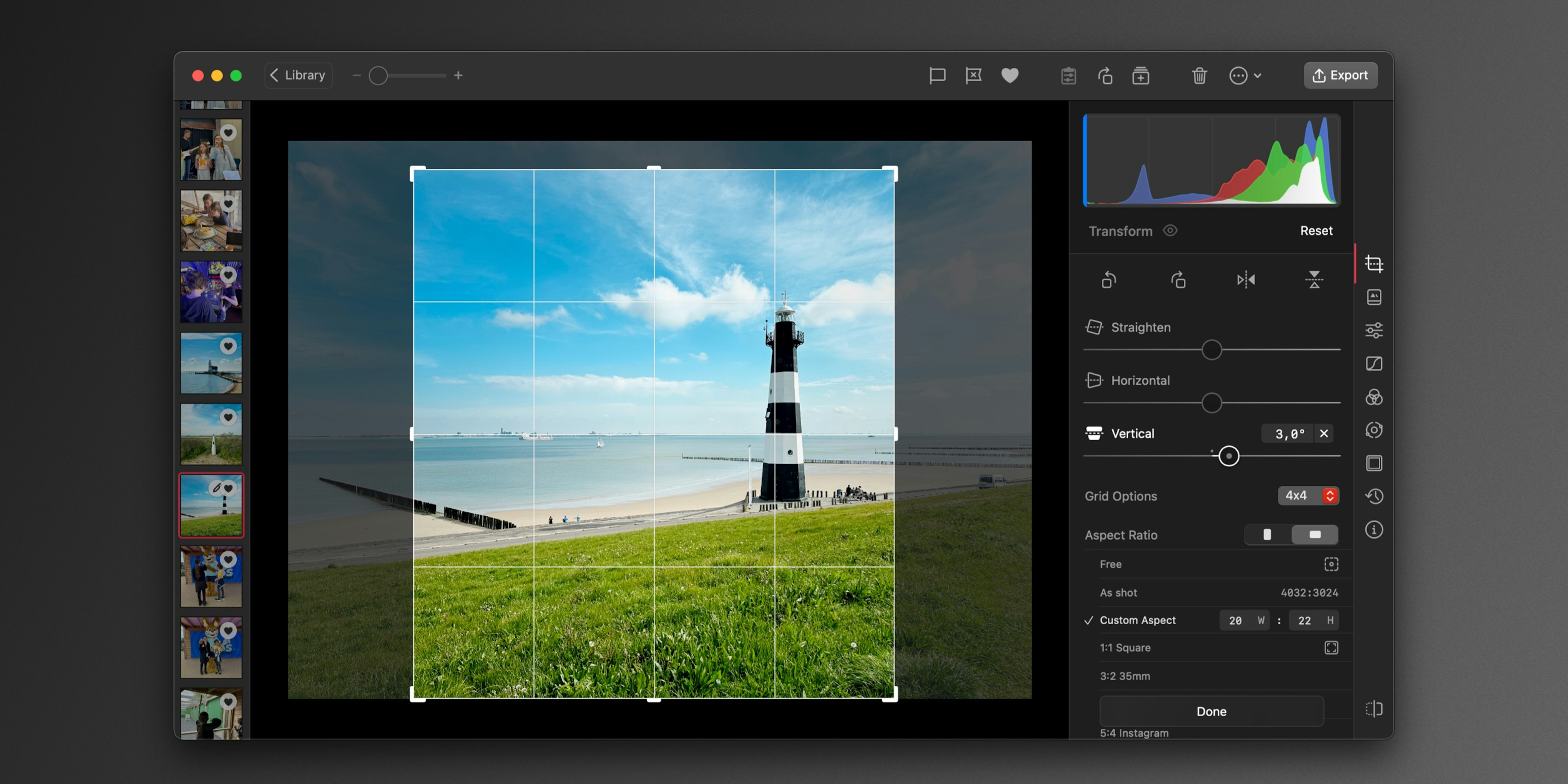
A good crop can completely change the impact of a photo. Open the Transform tool to reframe your image.
- Aspect ratio — choose a preset aspect ratio (like 4:3, 16:9, or 1:1 for square) or crop freely. A square crop works well for social media; wider ratios suit landscapes and cinematic compositions.
- Straighten — if the horizon is tilted or a building leans, use the straighten control to rotate the image until the lines are level. Even a small correction — one or two degrees — can make a photo feel much more polished.
- Reframe the subject — use the rule of thirds grid to position your subject along the intersecting lines. Placing the subject slightly off-center usually creates a more dynamic composition than centering it.
Cropping is also a great way to remove distractions at the edges of the frame — a stray object, a busy background, or empty space that doesn't add to the image.
5. Share or Save
When you're happy with your edit, you have a few options:
- Save — Darkroom's edits are fully non-destructive. Your original photo is never modified. When you save, Darkroom writes the edited version back to your Photos library. On iOS, this creates a new version of the photo that you can revert at any time.
- Share — tap the share button to send your edited photo directly to other apps — Messages, Instagram, email, or anywhere else. Darkroom renders the final image at full resolution when you share.
You can always come back to a photo later and change or undo any edit. Nothing is permanent.
What to Try Next
Now that you've completed your first edit, here are some directions to explore:
- Community Presets — browse thousands of presets created by photographers around the world. Find a style you love and make it your own.
- Masks — apply adjustments to specific parts of a photo rather than the whole image. Brighten a face without blowing out the sky, or darken the edges to draw the eye inward.
- Color Grading — learn how to use Curves and HSL to shape the mood and atmosphere of your photos with precise color control.
- Batch Actions — apply the same edits to multiple photos at once. Great for keeping a consistent look across a series.

