Histogram
Your eyes lie to you. Screen brightness, True Tone, and the light in the room all change how a photo looks, which makes it genuinely hard to know when you've hit pure black or pure white — or whether a neutral wall has picked up a color cast. The histogram doesn't lie. It's a diagram of how your pixels are distributed from black on the left to white on the right, plotted for the red, green, and blue channels, and it turns "this looks about right" into something you can actually verify.
To show it, tap the ••• action menu while viewing a photo and choose Show Histogram (or enable it in Settings); swipe it off to the right to hide it. Keep it up whenever you're making exposure- or color-critical decisions.
The histogram is fully hardware accelerated, which has two practical consequences. It updates in real time no matter how large the file is, so you get immediate feedback while dragging a slider rather than a reading that lags behind you — and it keeps up during video playback, so you can watch the distribution shift across a clip and catch the one moment where the highlights actually blow out. It also reflects your crop and transform accurately, so once you've cropped, you're reading the tones of the photo you're actually making rather than the original frame.
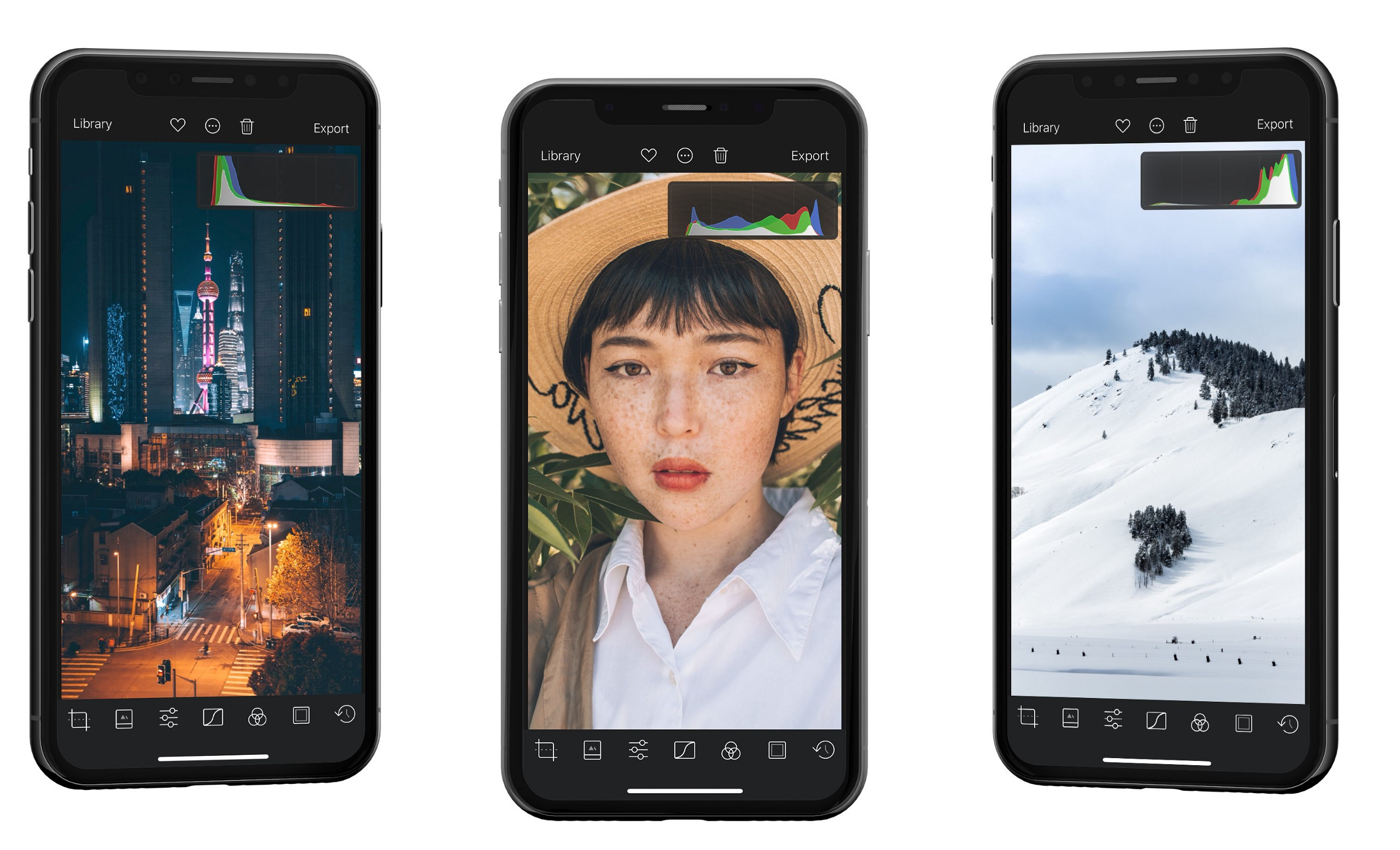
When it comes to histogram shapes: don't chase a "perfect" centered histogram. Plenty of beautiful images are deliberately low-key or high-key. The histogram is guidance, not a target.
Use the full tonal range
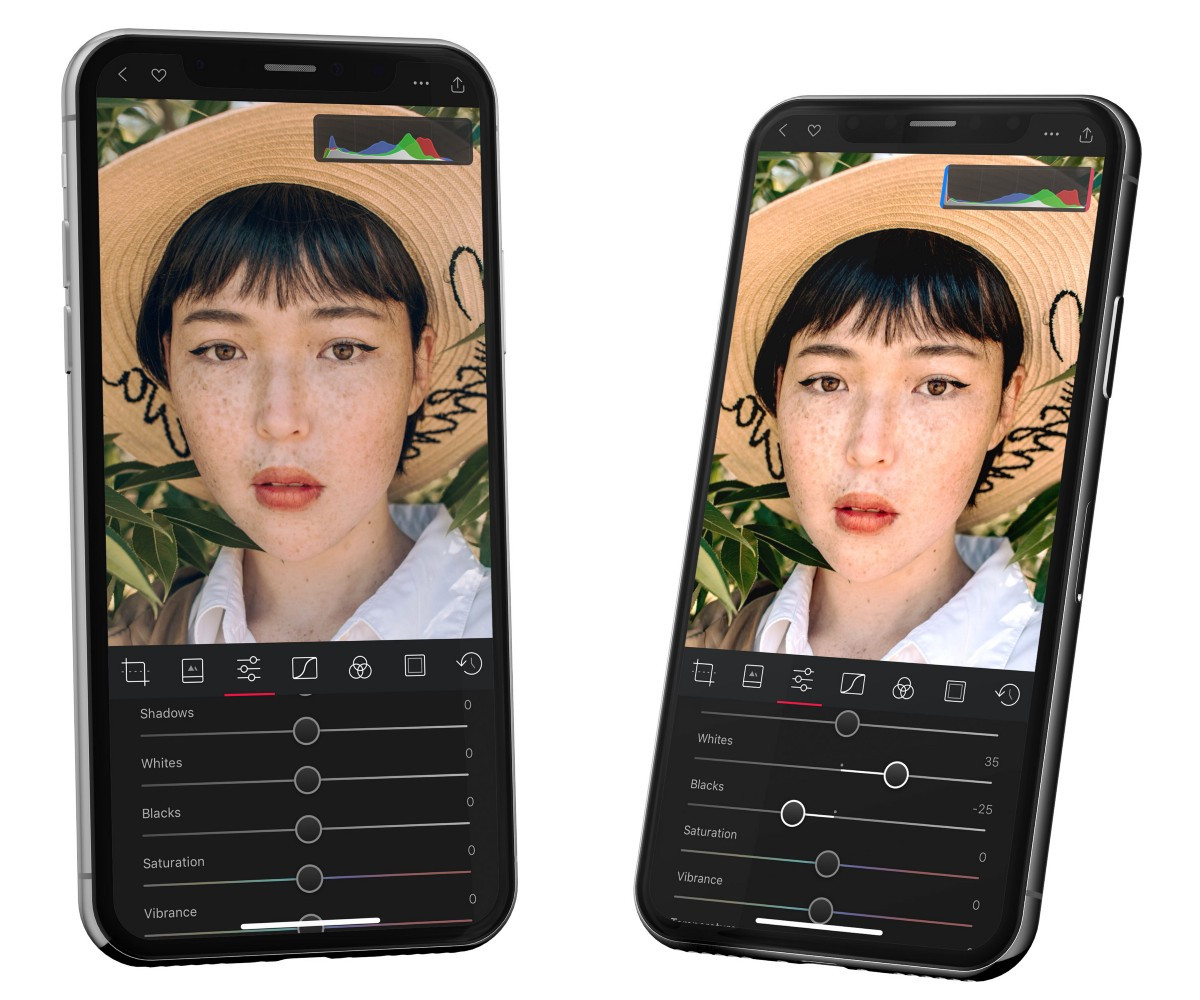
Phones try to expose for the whole tonal range, but they struggle with glare, backlight, or shooting through glass — and the result often looks flat. The histogram makes the fix obvious: if the graph doesn't reach the right edge, you have no true whites; if it stops short on the left, no true blacks. Stretch your Whites and Blacks until the data fills the range and the image gains richness and depth.
Spot and fix color casts
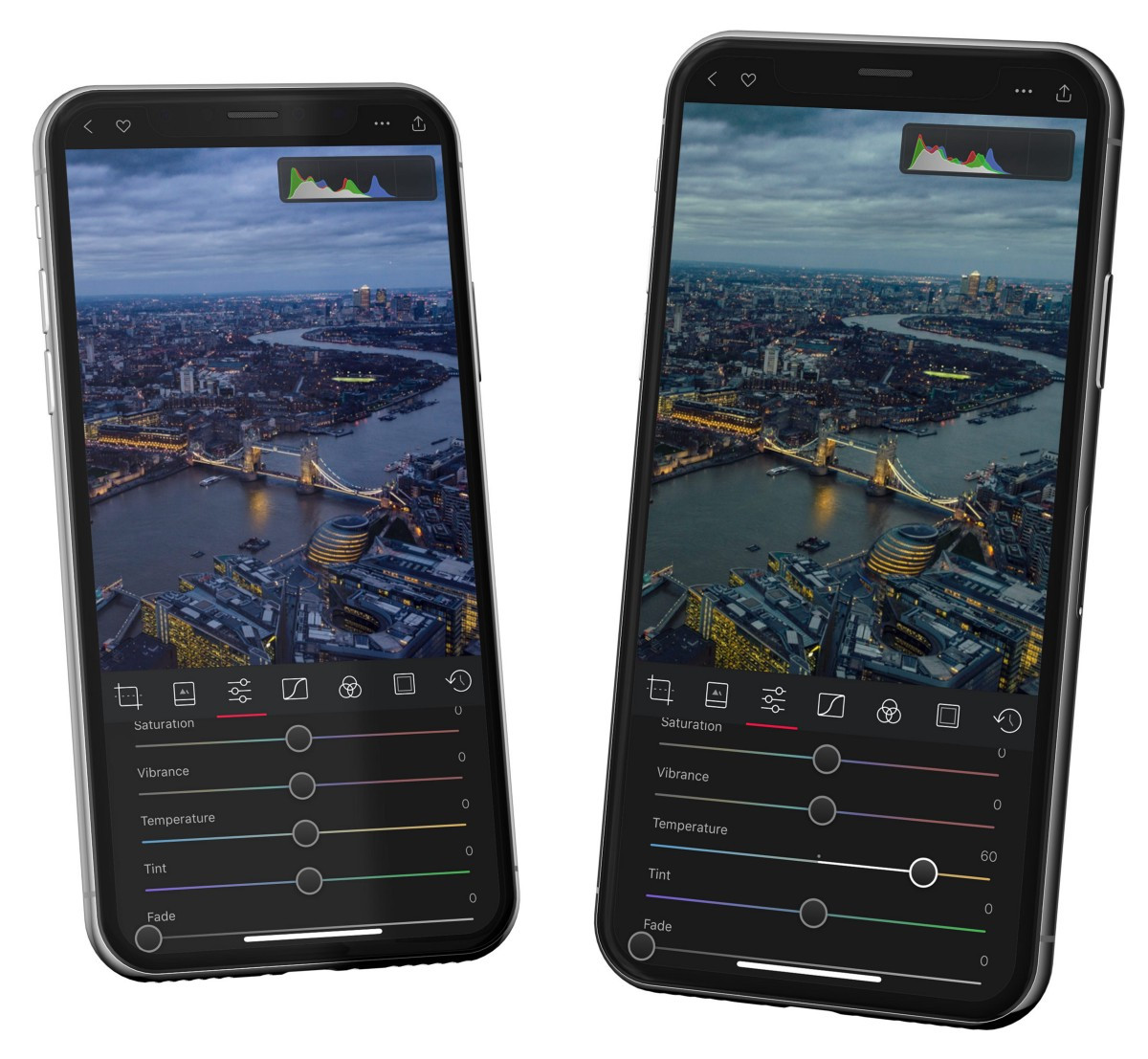
The color channels reveal problems your eye glosses over. Here's the key idea: where red, green, and blue overlap, you get neutral gray. So if a region should be gray but the channels are pulling apart, you have a cast — and the histogram tells you which way to correct. Align the channels with Tint and Temperature, or start from Auto White Balance or the Picker, then check a neutral by eye.
Watch for clipping
Clipping pushes highlights to featureless white or shadows to pure black in the current render. Pull the control back if you didn't mean to; detail the file never contained can't come back. Tools like Whites/Blacks, Curves, and Vignette make it easy to clip without noticing. When the histogram is visible, Darkroom calls it out with plain-language indicators and even marks the offending pixels right on your photo — clipped whites in red, clipped blacks in blue. Decide whether that clipping is an intentional style choice or a mistake, and re-check after any big tonal move or finishing effect.
One related gotcha: stretching the range too aggressively causes posterization — banding where you'd expect a smooth gradient, most visible in blue skies. You'll spot it as jagged steps in the histogram, and a little Grain helps disguise it.
Curve histograms
Curves also show relevant histograms behind each RGB and HSL curve, so you can judge the distribution you’re shaping while you work inside the Curves tool itself.
Related
- Introducing the Darkroom Histogram — the full feature, with examples
- White Balance for Temperature, Tint, Auto, and Picker
- Adjustment Sliders for the Whites/Blacks and exposure controls
- Curves (RGB) for precise tonal and channel correction