Color Grading for Mood
Color grading is the art of shifting colors in an image to create a specific mood or atmosphere. It's the difference between a photo that looks like a snapshot and one that feels like it belongs in a film or editorial.
Unlike basic color correction — where the goal is accuracy — color grading is about emotion. Warm tones can make an image feel intimate and nostalgic. Cool tones create distance, tension, or calm. And the interplay between warm and cool across different tonal ranges is what gives professional work its cinematic depth.
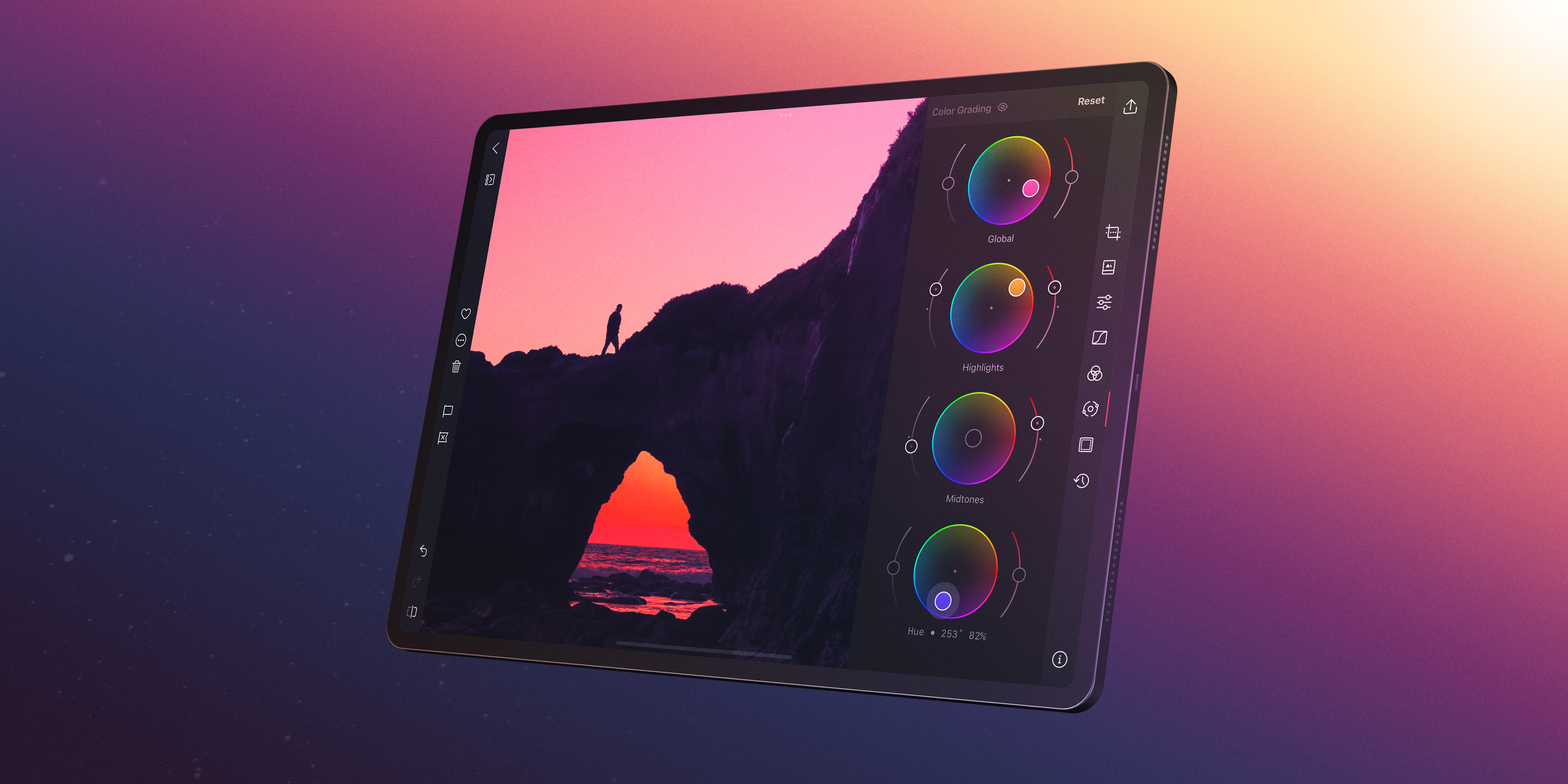
Darkroom's Color Grading tool gives you independent control over the color cast in your shadows, midtones, and highlights. This guide shows you how to use it to create four distinct moods, and how to fine-tune your grade with Curves and Saturation.
How Color Grading Works
The Color Grading tool provides four color wheels:
- Global — shifts the overall color cast of the entire image.
- Shadows — affects only the dark tones.
- Midtones — affects the middle tonal range where most of the image lives.
- Highlights — affects only the bright tones.
Each wheel lets you choose a hue (the color direction) and saturation (how strong the shift is). The Balance slider controls where the boundary between shadow tones and highlight tones falls, letting you expand or contract each range.
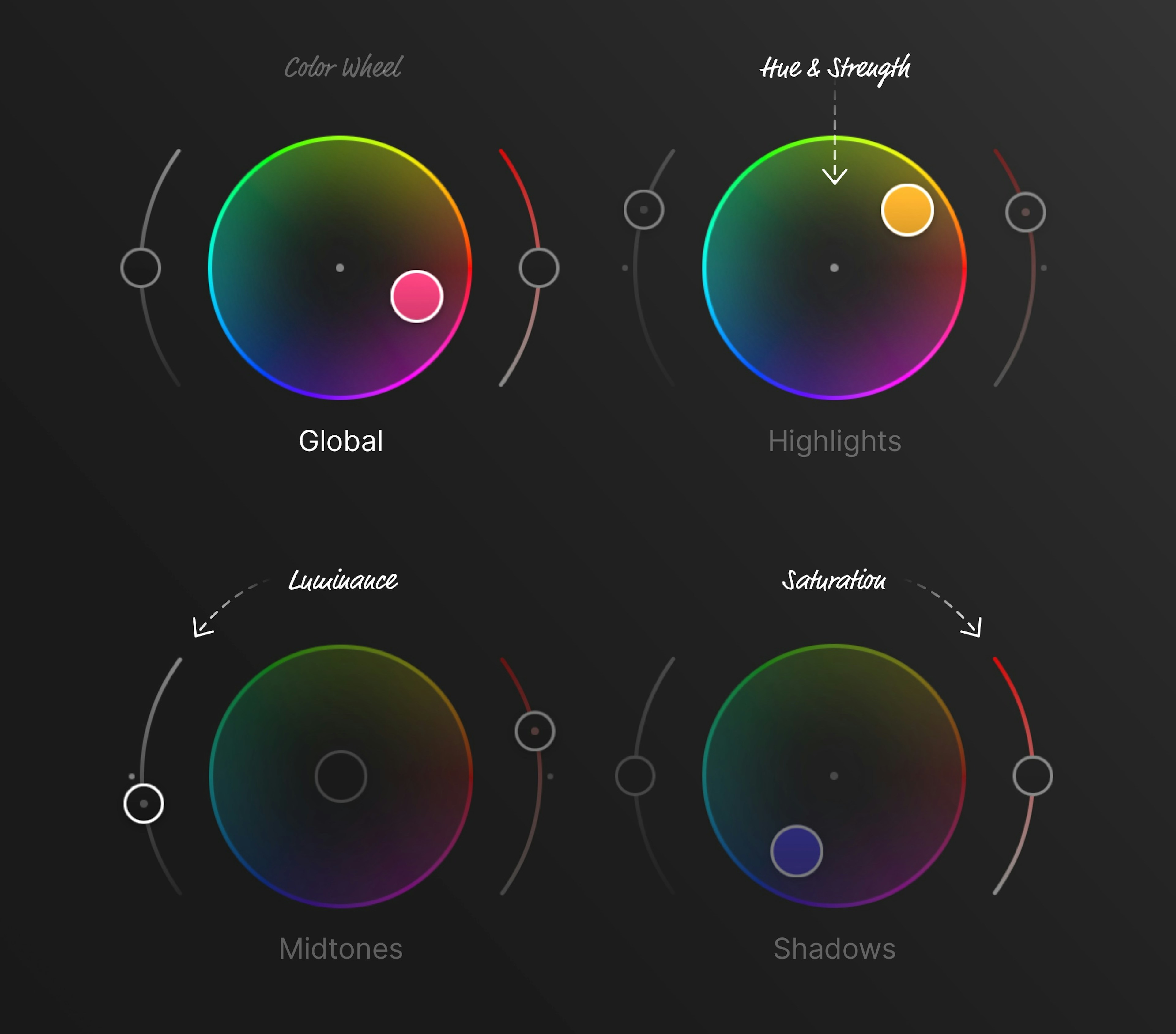
The power of color grading lies in using different colors for different tonal ranges. Warm shadows and cool highlights, or cool shadows and warm highlights — these complementary splits create visual tension and depth that a single global tint can't achieve.
Step-by-Step: Warm Golden Hour Look
This grade enhances the warmth of golden-hour light, making everything feel sun-drenched and inviting.
1. Set the Shadow Tone
Open the Color Grading tool and select the Shadows wheel. Push the color toward warm amber or orange. Keep the saturation moderate — you want warmth, not a heavy orange tint. This replaces cold blue-gray shadows with something that feels like late-afternoon light.
2. Set the Highlight Tone
Switch to the Highlights wheel and push toward warm yellow or light gold. This makes bright areas glow with the warmth of direct sunlight. Again, keep the saturation gentle.
3. Adjust the Midtones (Optional)
The midtones wheel can add a subtle overall warmth. A very slight push toward yellow or peach unifies the look. Be careful here — midtones affect the largest portion of the image, so even small shifts are noticeable.
4. Fine-Tune the Balance
Use the Balance slider to shift the boundary between shadow and highlight tones. Moving it toward the shadows will extend the warm highlight tone further into the image, amplifying the sun-drenched feel.
5. Boost or Temper the Grade
If the warmth feels too strong, lower the Saturation slider in the Adjustment Sliders by 5–15 points to take the edge off. If it feels too subtle, increase Vibrance slightly to bring out the warm tones without oversaturating everything.
Step-by-Step: Cool Moody Look
This grade pushes the image toward cold, desaturated tones — think overcast days, nighttime cityscapes, or brooding portraits.
1. Set the Shadow Tone
In the Shadows wheel, push toward blue or teal. This is the foundation of the moody look — cool shadows create a sense of coldness or emotional distance.
2. Set the Highlight Tone
Keep highlights neutral or push them very slightly toward pale blue or lavender. You want the cool feeling to be consistent, without any warm relief.
3. Lower Exposure and Lift Blacks
In the Adjustment Sliders, lower Exposure slightly (-0.3 to -0.5) to darken the overall image. Moody images tend to be underexposed. Optionally, lift the Blacks slider slightly to keep the shadows from going completely dark — this adds a slightly hazy, atmospheric quality.
4. Desaturate
Lower the Saturation slider by 20–35 points. Moody images work best with muted, restrained colors. The blue/teal grade should tint the image without making it look like a color filter was applied.
5. Adjust Contrast
A moderate increase in Contrast (+15 to +25) helps the remaining tonal range feel intentional. You can also use a gentle S-curve in the Curves (RGB) tool for more control.
Step-by-Step: Cinematic Teal and Orange
The teal-and-orange look is everywhere in cinema. It works because teal and orange are complementary colors — they create maximum visual contrast when placed side by side. In practice, skin tones fall in the warm/orange range, and shadows and backgrounds are pushed toward teal.
1. Push Shadows Toward Teal
In the Shadows wheel, push toward teal (between cyan and green). This is the cooler half of the look — it will color your shadows, dark backgrounds, and any non-skin areas in the darker tonal range.
2. Push Highlights Toward Warm Orange
In the Highlights wheel, push toward warm orange or amber. This warms up bright areas and skin tones, creating the characteristic warm-cool split.
3. Balance the Split
Use the Balance slider to control how much of the image falls into the teal versus the orange. For portraits, shift balance toward shadows so the warm skin tones extend further into the midrange. For landscapes or urban scenes, keep it more centered.
4. Refine with Curves
Open the Curves (RGB) tool and switch to individual color channels for precision:
- In the Blue channel, lift the shadow region slightly (adds blue/teal to shadows) and lower the highlight region (removes blue from highlights, adding warmth).
- In the Red channel, a very subtle lift in the highlights can enhance the orange warmth in skin tones.
Curves and Color Grading complement each other — use Color Grading for the broad strokes and Curves for the fine details.
5. Control Intensity
Use the Saturation and Vibrance sliders to dial in the final intensity. If the teal-orange split feels too aggressive, lower Saturation. If you want to push it further, increase Vibrance — this amplifies the less-saturated colors (like the teal tones) without oversaturating already-vivid hues.
Fine-Tuning with Curves RGB Channels
The Curves (RGB) tool isn't just for contrast — its individual Red, Green, and Blue channels let you shift color balance at any point along the tonal range. This makes it a powerful companion to the Color Grading wheels.
Some useful techniques:
- Lift Blue shadows — adds a blue cast to the darkest tones, great for a cool base.
- Lower Blue highlights — removes blue from bright areas, adding warmth. Combined with the above, you get a classic warm-highlight/cool-shadow split.
- Lift Red midtones — adds subtle warmth to skin tones and midrange areas.
- Lower Green shadows — adds a magenta tint to the shadows, which works well for moody or fashion-oriented edits.
The key difference between Curves and Color Grading: Curves applies color shifts based on the pixel's brightness, while Color Grading uses its own tonal mapping. For most grading work, start with Color Grading for the broad mood, then use Curves channels to refine specific tonal regions.
Related
- Color Grading — the wheels and every control in depth
- Curves (RGB) — per-channel color when grading isn't precise enough
- Create a Custom Preset — save a grade you like and reuse it
- Create a Vintage Film Look — a complete worked example of a grade
- Black and White — where toning replaces color grading entirely