Shortcuts Automation
Darkroom's Shortcut Actions let you fold repetitive editing and export work into Apple Shortcuts. A single shortcut can process a photo or video, apply a look, crop to an aspect ratio, add a frame and watermark, and then save the result or hand it straight to another app. For everyday use that means fewer taps; for production work it means a full publishing pipeline that runs on its own.
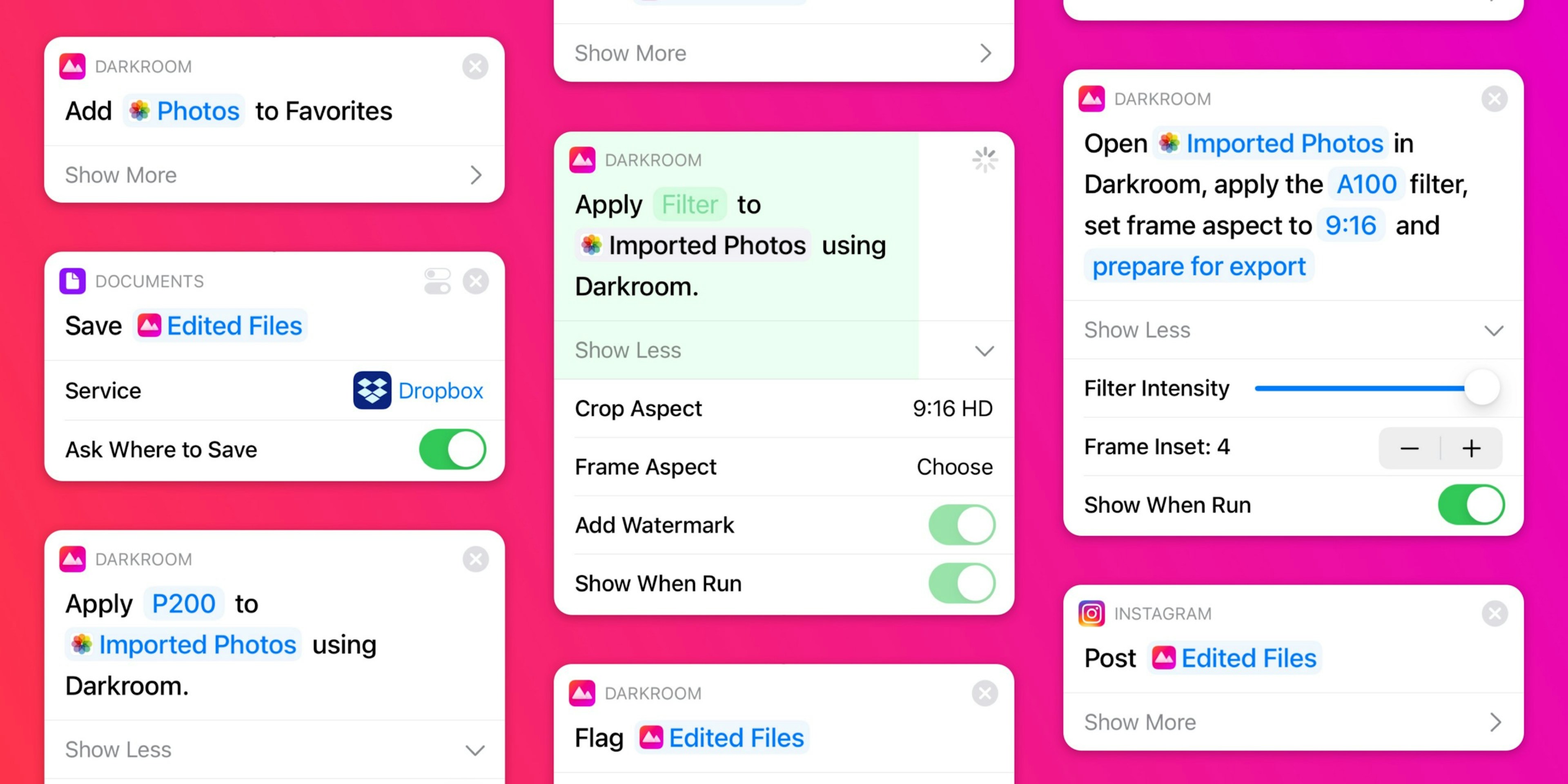
You build these in Apple's Shortcuts app on iPhone, iPad, or Mac: create a shortcut and search for Darkroom actions to add them. Once a shortcut exists, you can run it from the Shortcuts app, a Home Screen or Lock Screen widget, Siri, the Action Button, or Control Center, depending on your device and OS version — so an edit-and-share flow can be a single press away from wherever you are.
What you can automate
Darkroom's actions cover the parts of a workflow you'd otherwise repeat by hand. You can run an edit in the background with Darkroom's processing, apply a preset and dial in its intensity, crop to common aspect ratios like 1:1 or 9:16, and add frames or a watermark to the output. From there a shortcut can save to Photos or Files, pass the result into another app's action, or combine with library actions like flag and favorite flows for culling and delivery.
Building your first automation
Start simple. In Shortcuts, create a new shortcut and add a photo input action — selected photos, for example. Add one or more Darkroom actions to apply your look, crop, or watermark, then finish with an output action such as Save to Photos, Save File, or Share. Run it against a small sample set before you trust it with a batch, and save it once it behaves. That alone gives you a repeatable one-tap workflow for everyday posting.
Scaling it into a production system
Once the basics click, shortcuts become a delivery system. Build a separate shortcut per destination — Instagram Stories, portfolio exports, client previews — each chaining Darkroom actions with that platform's delivery action so there's no manual app-hopping. Keeping the frame, crop, and watermark settings consistent across them holds a campaign visually uniform, and the same logic runs on Mac for desktop batch work. A useful habit is to keep shortcuts modular and named by their goal rather than the tool involved: one shortcut for editing and one for delivery is easier to maintain and faster to pick in a hurry.
Related
- Shortcut Actions — the original feature introduction
- Monterey + iOS 15 update — expanded entry points and Mac support
- Export, Save or Share — the export step these pipelines automate
- Batch Actions — process a consistent set in one pass