How to Turn Color Photos into Black and White
Black and white photography strips away the distraction of color to focus on light, shadow, texture, and composition. A well-crafted black and white conversion can turn an ordinary photo into something timeless.
But removing color is only the first step. What separates a flat desaturated image from a truly striking black and white photo is how you control tones, contrast, and texture. In this guide, you'll learn how to use Darkroom's editing tools to create black and white images with depth and character.
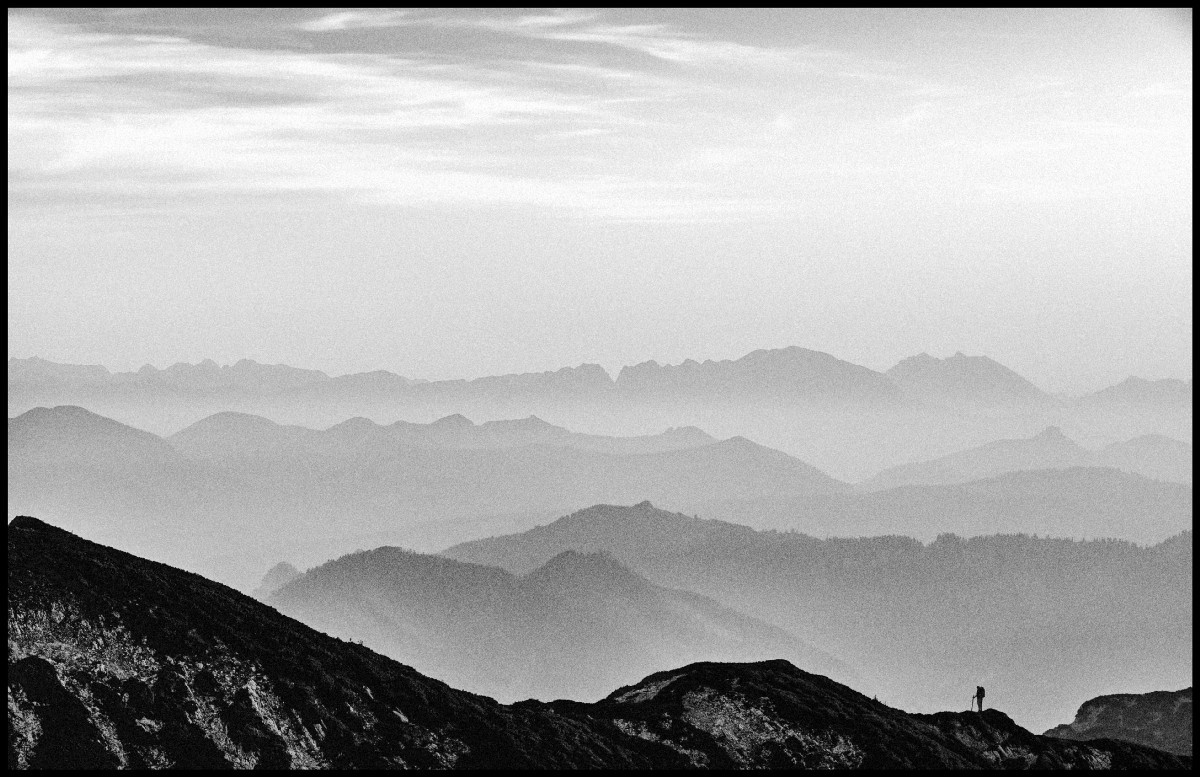
When to Use Black and White
Not every photo benefits from removing color. Black and white tends to work best when:
- The scene has strong contrast — dramatic light and shadow, harsh sunlight, or deep silhouettes give a black and white image its visual punch.
- Textures tell the story — weathered surfaces, fabric, skin, architecture, and natural patterns all gain emphasis without color competing for attention.
- Color is distracting — mixed or unflattering lighting, clashing colors, or busy backgrounds often look better in monochrome.
- You want a mood — black and white naturally evokes a sense of timelessness, nostalgia, or gravity that color can't always achieve.
- The composition is strong — leading lines, geometric shapes, and bold framing stand out more when color is removed.
Step-by-Step Workflow
1. Start from a Black and White Preset (Optional)
If you want to jumpstart your black and white editing, the Black & White preset collection in Darkroom features dozens of presets created by the community. Styles range from classic film emulations like Ilford HP5 and Kodak Tri-X to more modern, high-contrast looks.
Every community preset is fully transparent — you can see exactly which adjustments were made and tweak any setting to make it your own. This makes presets a great learning tool: apply one you like, then look at the Curves, Color, and Contrast settings to understand how the look was built.
2. Remove Color with the Saturation Slider
To make a photo black and white in Darkroom is to drag the Saturation slider all the way to the left (-100) in the Adjustment Sliders. This removes all color information, giving you a neutral grayscale starting point.
At this stage, the result will look flat — that's expected. Think of it as a blank canvas. The real work happens in the steps that follow, where you'll shape the tones, add contrast, and bring the image to life.
Tip: Leave the Vibrance slider alone for now. Vibrance affects color intensity selectively, specifically not touching skin colors, but since we're removing all color, Saturation is the right tool here.
3. Control How Colors Become Grays with Color Brightness
Here's where things get interesting. Even though your photo looks black and white, the original colors are still there underneath — and you can use them to control which areas appear lighter or darker.
Open the Color tool and pick the color you wish to adjust. Each color channel lets you brighten or darken the tones that were originally that color:
- Push the Blue channel down to darken skies and water, creating drama.
- Push the Orange channel up to brighten skin tones in portraits.
- Push the Green channel down to darken foliage and make it richer.
- Push the Yellow channel up to lift golden-hour highlights.
This is the digital equivalent of using colored lens filters in traditional black and white film photography. A red filter darkens blue skies; a yellow filter brightens skin. The Color tool in Darkroom gives you that same control, but for every color at once, and with far more precision.
Experiment freely here — small changes can dramatically reshape the feel of a black and white image.
4. Add Punch with Contrast and Clarity
Black and white images thrive on tonal separation. Without color to distinguish elements, you need contrast to do that work.
In the Adjustment Sliders, try:
- Contrast — increase to widen the gap between lights and darks. Start subtle (around +20 to +40) and adjust to taste.
- Clarity — boosts midtone contrast, which reveals texture and detail. Works especially well on architecture, landscapes, and anything with fine surface detail.
- Highlights & Shadows — pull highlights down and lift shadows slightly to recover detail in both ends of the tonal range, or push them apart for a more dramatic look.
- Blacks & Whites — set the endpoints of your tonal range. Crushing the blacks (pulling them down) creates deep, inky shadows. Pushing whites up adds bright, clean highlights.
There's no single right answer here. A high-contrast look with deep blacks feels bold and graphic. A softer approach with lifted shadows feels more gentle and film-like. Let the subject guide you.
5. Shape the Tonal Curve
The Curves tool gives you the most precise control over the tonal range of your black and white image. It works on the combined brightness channel (RGB), letting you place control points anywhere along the range from blacks to whites.
A few starting points:
- S-curve for contrast — pull the shadows down slightly and the highlights up to add contrast. This is the classic curves move and works beautifully in black and white.
- Lifted blacks for a film look — raise the bottom-left point of the curve so the darkest shadows become dark gray instead of pure black. This creates the faded, matte look characteristic of many film stocks.
- Highlight compression — pull down the top-right point slightly to prevent highlights from becoming pure white, giving a softer, more analog feel.
The Curves tool also has individual tracks for Blacks, Shadows, Midtones, Highlights, and Whites — letting you make targeted adjustments without affecting the rest of the tonal range.
6. Add Film Grain
Grain is a hallmark of analog black and white photography. Adding it digitally can give your image a tactile, photographic quality that smooth digital files often lack.
In the Adjustment Sliders the Grain slider adds a natural-looking film grain pattern to your image. Start with a subtle amount — a little goes a long way. The goal is to add texture without making the image look noisy.
Grain works especially well alongside the lifted-blacks technique from the previous step, together creating a convincing analog film aesthetic.
7. Get Creative with Toning and Duotones
A pure black and white image doesn't have to stay purely neutral. Many classic analog darkroom techniques involve toning — adding a subtle color cast to the grayscale image. You can achieve this in Darkroom using the individual color channels in the Curves tool.
Sepia / Warm Tone: Switch to the Blue channel in Curves and pull the midtones down slightly. This removes blue from the image, giving it a warm, brownish tone. For a richer sepia, also push the Red channel midtones up slightly.
Cool Tone: Push the Blue channel midtones up for a cold, steely look that works well for urban and architectural photography.
Split Tone: The most sophisticated approach — add warmth to the highlights and cool tones to the shadows (or vice versa). In the Blue channel, raise the shadow region while lowering the highlight region. This creates a beautiful tonal separation where warm and cool coexist in the same image.
Duotone: Push a single color channel more aggressively to create a bold two-color effect. For example, lifting the Red channel across the entire range creates a striking red-and-black duotone.
These techniques layer on top of your desaturated image, so you're in full control of both the tonal structure and the color overlay.
Judging a black and white edit
Without color to carry the image, everything rests on tonal structure — which makes the Histogram more useful here than almost anywhere else. Check that you're genuinely reaching both ends of the range: a monochrome photo with no true black and no true white reads as grey and lifeless no matter how good the composition is. Equally, watch for clipping, because crushed shadows lose the detail that gives a black and white photo its depth.
The most common mistake is stopping at desaturation. Removing color is the first step, not the edit — the work that makes a monochrome image compelling is deciding which colors became which greys, and that happens in Color Brightness and Curves. If a black and white conversion feels flat, go back there before adding more contrast.
Save it as a preset
Once a conversion works, save it as a preset so the rest of the set matches. Build it from the stylistic moves — the color-to-grey mapping, your curve, grain, and any toning — and leave per-photo exposure and white balance out, so it lays over each new image instead of fighting the light it was shot in. A base conversion plus a higher-contrast and a softer variant will cover most of what you shoot.
Related
- Color (HSL) — the Color Brightness controls that decide how colors map to greys
- Curves (RGB) — tonal shaping and the channel work behind toning and duotones
- Adjustment Sliders — contrast, clarity, and grain
- Vintage Film Look — a related analog treatment, in color
- Create a Custom Preset — save your conversion for reuse