Adjustment Sliders
Almost every good edit starts here. Before you reach for Curves, Color Grading, or Masks, the Adjustment Sliders do the heavy lifting: getting exposure right, balancing color, and adding the texture and finishing effects that give a photo its feel. You'll find them in the Adjustments tool.
The single most useful habit is to work in that order — tone, then color, then texture and effects — because your exposure and white-balance choices change how everything downstream behaves. Keep the Histogram open so brightness decisions are objective, set your composition in Transform first, and tap-and-hold often to compare against the original.
Exposure: get the light right
This is where you fix and shape the light. Brightness shifts overall lightness; Highlights and Shadows recover detail at the bright and dark ends; Whites and Blacks set your tonal endpoints and overall punch; and Contrast controls the separation between dark and bright.
Highlights and Shadows reach further than you might expect. Darkroom renders in full linear color space, which means these two sliders work against the complete depth of the image data rather than a compressed approximation of it — so recovery holds up at the extreme ends, where it used to go grey and flat, and it's most noticeable on high-dynamic-range RAW files. Recovery is also spatially aware, so a soft sky and a textured field in the same frame are treated differently. Push where it helps, ease off where it would hurt.
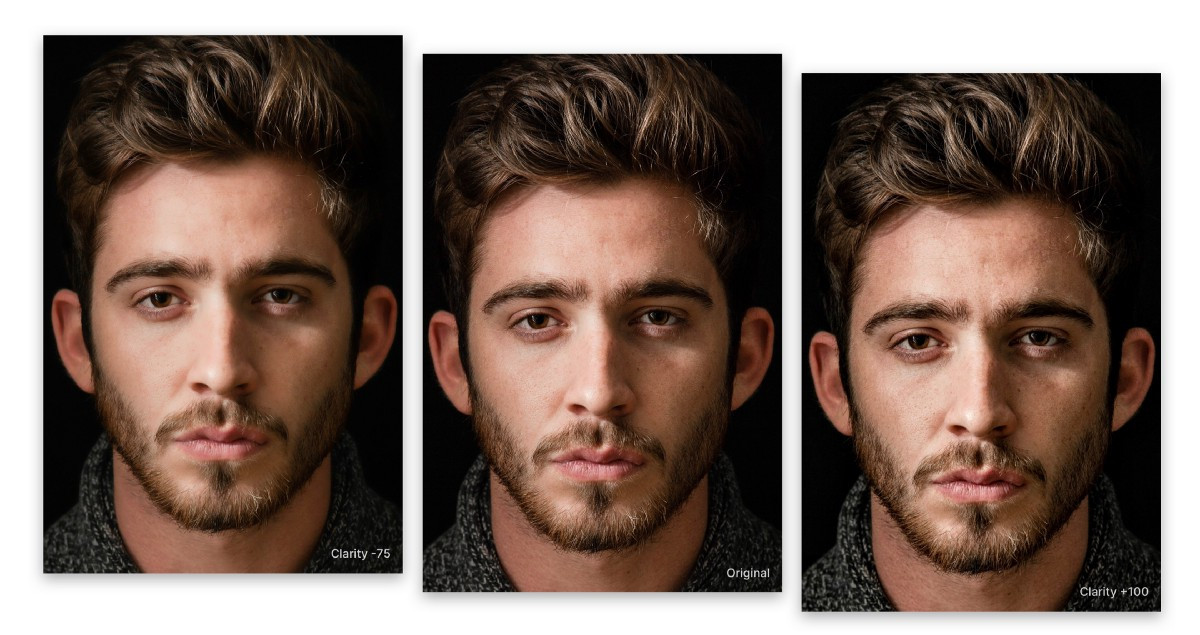
Clarity is the quiet standout. It adjusts contrast within the details of an image without touching the overall tone — so edges stay sharp and your whites and blacks don't move. Push it up to bring out texture in petals, rock, and weathered detail; pull it down to smooth skin while keeping eyes and hair crisp. It's logarithmic, so small moves near the center are subtle and the ends get dramatic.
Color: balance and intensity
Two pairs do most of the work. Temperature and Tint are your white balance — warm/cool and green/magenta — and fixing them first keeps every later color decision honest. Darkroom uses a natural color-adaptation model, with Auto and a Picker for photos — see White Balance for the full walkthrough. Vibrance and Saturation then set color intensity, and the difference matters: Saturation boosts every color equally and oversaturates skin and already-vivid areas quickly, while Vibrance protects those and lifts the muted tones. Reach for Vibrance first, and only add Saturation if you still need it.
Texture: character and finish
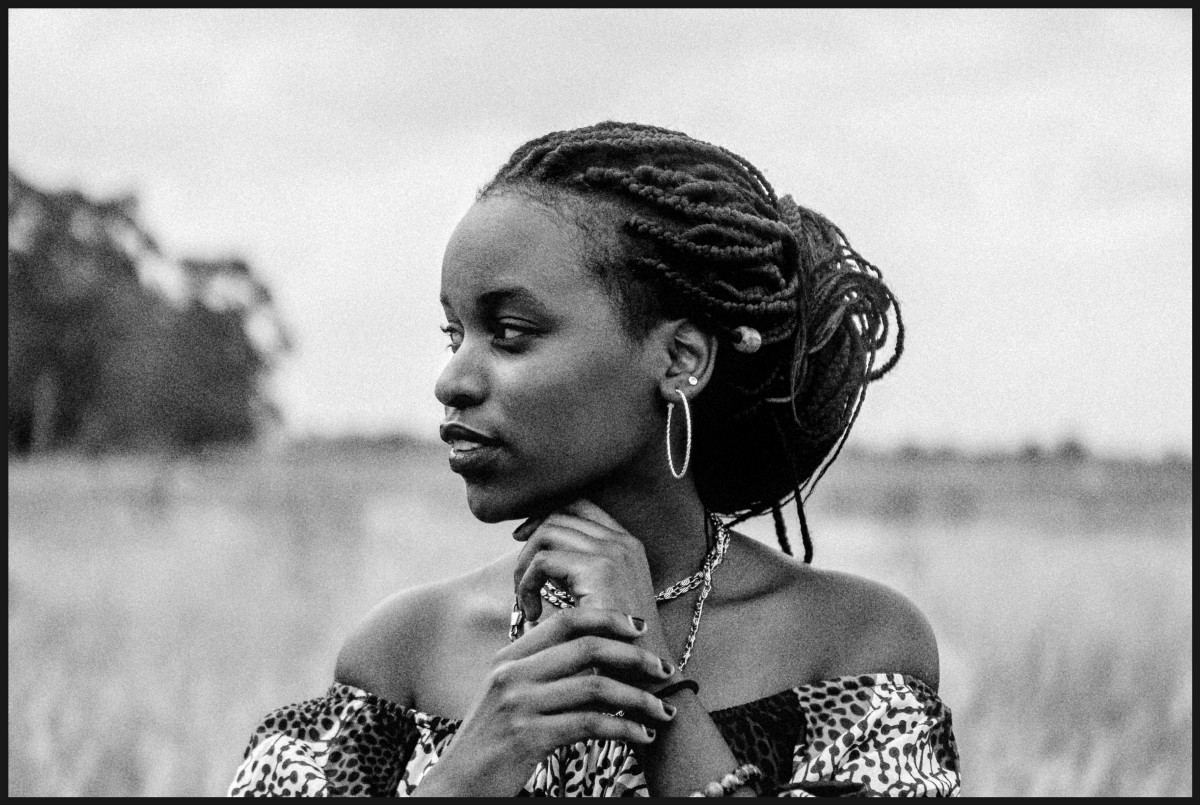
Texture is where a photo gains mood. Grain adds filmic cohesion and hides digital smoothness — invaluable for stylized and black-and-white looks. Fade lifts the black floor for a soft, flatter, film-like base. Sharpness crispens edge detail, best used sparingly to avoid halos. And Bloom and Halation add analog-inspired glow and warmth — see Bloom & Halation for the full story.
Effects: guiding attention
Vignette darkens (or brightens) the edges to pull the eye toward your subject, and Tinting lays a stylized color wash over the whole image. Both are finishing moves — apply them last, after tone, color, and texture are settled.
A reliable order
If you're ever unsure where to start, this sequence keeps edits predictable:
- Exposure — Brightness, then Highlights/Shadows, then Whites/Blacks.
- Color — Temperature/Tint, then Vibrance before Saturation.
- Texture — Contrast/Clarity, then Sharpness, Grain, and Fade.
- Effects — Vignette and Tinting, with Bloom/Halation if the scene calls for it.
Make smaller moves than you think you need; sliders stack, and the most natural-looking edits come from many gentle adjustments rather than a few aggressive ones. When something looks crunchy, ease off Clarity and Sharpness first; when colors look fake, trade Saturation for Vibrance.
Related
- White Balance — Temperature, Tint, Auto, and Picker
- Clarity in Darkroom — how Clarity works and when to use it
- Curves (RGB) for precise tonal and color shaping
- Color (HSL) for channel-specific color fixes
- Histogram to keep exposure objective