Landscape Photography Editing
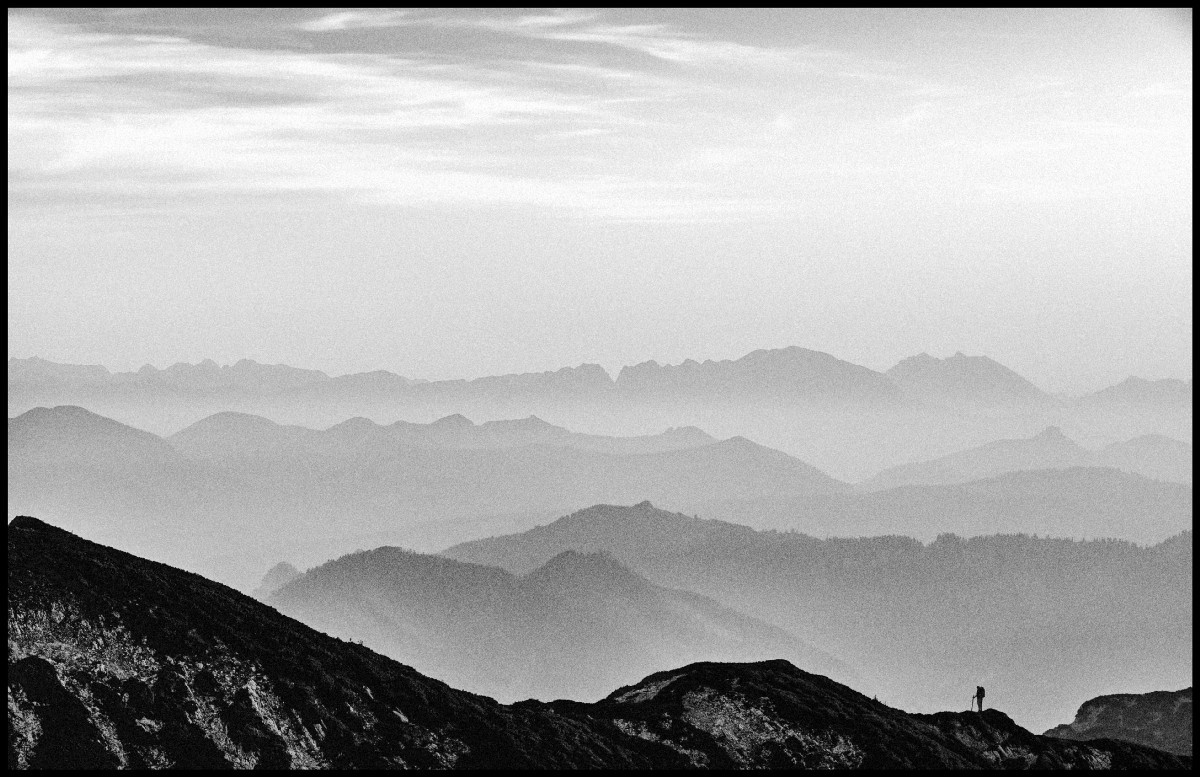
Landscape photography captures the scale and beauty of the natural world, but a straight-out-of-camera frame rarely matches what your eyes saw. Your eyes adapt across a scene's range, holding detail in both a bright sky and a dark foreground at once; a sensor can't. Good landscape editing bridges that gap — it recovers the detail the camera missed, brings back the colors that caught your attention, and directs the viewer through the scene. With Darkroom's masks, HSL controls, and curves you can do all of it non-destructively.
The techniques here apply across outdoor work: wide scenic views, high-dynamic-range sunrises and sunsets, forests and foliage rich with color, and travel shots you want to feel as vivid as the place itself. They reward shooting RAW especially, since the extra latitude gives you far more room to recover highlights and lift shadows cleanly. The workflow below moves from sky to foreground.
Enhance the sky
The sky is usually the first thing a viewer notices and the area most likely to wash out. A Linear mask lets you treat it independently: position it over the sky, then lower Highlights to recover detail in bright clouds, add a little Contrast to give cloud formations definition, and deepen a blue sky with a small drop in Exposure or a gentle Saturation lift. A slightly cooler Temperature makes the sky read deeper, and a touch of Clarity inside the mask brings out dramatic cloud texture without touching the land below. On portrait-orientation shots, the Sky smart mask follows the horizon automatically, even around trees and buildings.
The one caution worth keeping in mind: the sky and foreground have to feel like they belong in the same photograph. A heavily darkened, oversaturated sky can look striking on its own and completely unnatural next to the rest of the frame.
Boost greens and foliage
Foliage almost always looks duller in a photo than it did in person. The Color (HSL) tool lets you target specific colors without disturbing the rest of the image. Pick the green channel and raise Saturation to revive grass and trees, and nudge yellow up too, since many natural greens carry a yellow component. Lower green Luminance slightly to make foliage read dense and lush rather than pale, and lighten yellows to add glow to sunlit grass. A Hue shift steers the season: greens toward yellow for warmer, golden foliage, or toward cyan for cooler, deeper tones. The fastest way to land on the right channel is the Color Picker — tap a color in the photo and Darkroom selects the matching HSL band for you.
Control dynamic range with masks
Most landscapes hold a wide brightness range, and applying global exposure compromises one end to fix the other. Editing the bright and dark regions separately is the single technique that does more for a landscape than any other. Luminance Range masks make this precise: build one targeting the dark tones and raise Exposure and Shadows to open foreground detail without touching the sky, then build a second targeting the bright tones and lower Highlights to pull back any remaining blown areas. Give each range a soft falloff so the two adjustments meet without a visible seam — that's usually what decides whether the sky and land still feel like one photograph. It's the control HDR software promises, but you decide exactly how much and where. For simpler compositions, a Linear mask across the foreground works as an alternative.
Shape light with curves
Once the dynamic range is balanced, the Curves (RGB) tool shapes the overall tonal character. A gentle S-curve — shadows pulled down a little, highlights lifted — adds contrast that feels natural rather than aggressive. The individual color channels are the often-overlooked part: in the Blue channel, lift the shadow region to cool deep forest shadows and lake reflections and lower the highlights to warm the sunlit areas, creating the warm-cool split that mirrors how outdoor light actually behaves. A slight lift in the Red midtones adds golden warmth that suits a sunset or golden-hour scene.
Final polish
A few finishing moves bring everything together. A moderate Clarity boost sharpens midtone detail in rock, bark, sand, and clouds — though it's additive and a little goes a long way, so stop before you see grungy halos around edges. A small Sharpness lift brings out fine texture, best checked at 100% zoom where over-sharpening and noise actually show. A subtle Vignette under Effects darkens the edges to draw the eye inward; wide-angle shots benefit most, but it should feel like a property of the lens, not an obvious overlay. Finally, revisit Temperature and Tint for overall mood — sunrise and sunset frames often look best pushed a touch warmer.
For atmospheric and film-leaning landscapes, a measured amount of Grain adds tactile texture and a sense of mood that clean digital files can lack. Darkroom integrates grain along a luminosity curve, so it stays subtle in bright skies and more present in darker regions — the way real film behaves — which keeps it convincing rather than noisy.
Related
- RAW Editing — why landscapes benefit most from RAW latitude
- Masks & Local Adjustments — Linear and Luminance Range masks, including falloff
- Color (HSL) and Curves (RGB) — targeted color and tone
- Highlight & Shadow Recovery — the engine behind dynamic-range edits