Library View
The library view is where you browse, organize, and manage your photos and videos. Darkroom reads directly from your Apple Photos library, so everything you see here reflects what's already in your library — albums, favorites, shared albums, and all. There's nothing to import and nothing copied onto our servers; we simply show you your own photos from iCloud, and we never analyze them or do anything with them without your explicit consent.
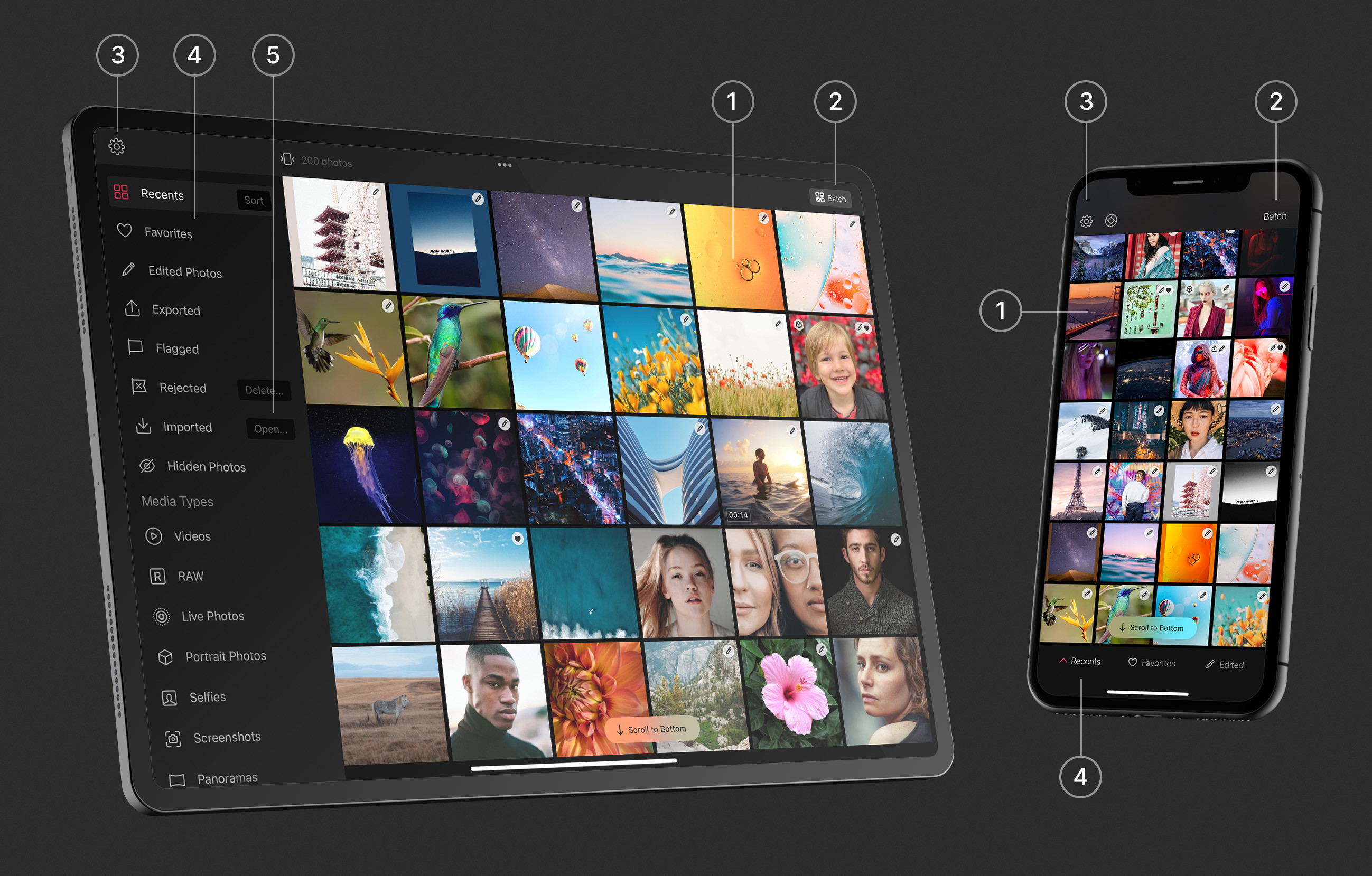
The photo grid
If you've given Darkroom access to all your photos, they all appear in the grid with no importing needed — though you're free to grant access one photo at a time instead. The grid is the main way to browse, and it's worth shaping it to the task in front of you: pinch directly on the grid on iPhone and iPad, use the column controls on iPhone, or drag the zoom slider on Mac to change how many thumbnails fit per row. Zoom out to scan a whole shoot at once; zoom in when you want larger previews and a better read on each frame. On iPad and Mac, a filmstrip view is also available below the main photo view.
Thumbnails can be shown either as uniform squares or at each photo's original aspect ratio. Squares give you a tidy, even grid; original aspect makes it far easier to compare compositions and spot which frames are portrait or panoramic without opening them. Bear in mind that with square thumbnails a composition may look slightly different from the full frame.
Opening a photo is as simple as tapping it on iPhone, iPad, and Vision Pro, or double-clicking on Mac (its native behavior). Once a photo is open, swipe left or right on iPhone, or use the arrow keys on iPad and Mac, to move between shots, and tap the back button or press Escape to return to the grid. You can sort the grid three ways: by date created — when the photo was taken — by date added, when it entered your library, or by date modified, which is the fastest way to surface what you've been working on most recently in a large shoot.
Quick actions live in the context menu: tap and hold a photo, or right-click on Mac, to Share it to other apps or people, Favorite or unfavorite it, Hide it from the library, or Delete it. To work on many photos at once, use Batch. On iPhone, iPad, and Vision Pro the Batch button sits at the top right, and you can start a selection quickly by swiping across the photos you want; once photos are selected, the batch actions bar appears at the bottom. On Mac you can multi-select by default, extending a selection with the ⌘ and ⇧ keys, with batch actions always present in the top-right toolbar.
You'll find Settings behind the gear icon at the top left on iPhone, iPad, and Vision Pro, or under the Darkroom menu on Mac — it's worth a look around for the many options tucked there.
Album list
Your albums and folders live alongside the grid. On iPhone, Darkroom uses the native floating tab bar with a dedicated Library tab, so your albums and collections are one tap away rather than tucked behind a picker — you can jump into an album, move to another, then return to Recents without backing out through a menu. That matters most when you're reviewing a shoot, filing exports, or picking up a project again. On iPad, Mac, and Vision Pro, the album list is always present in the left-hand sidebar.
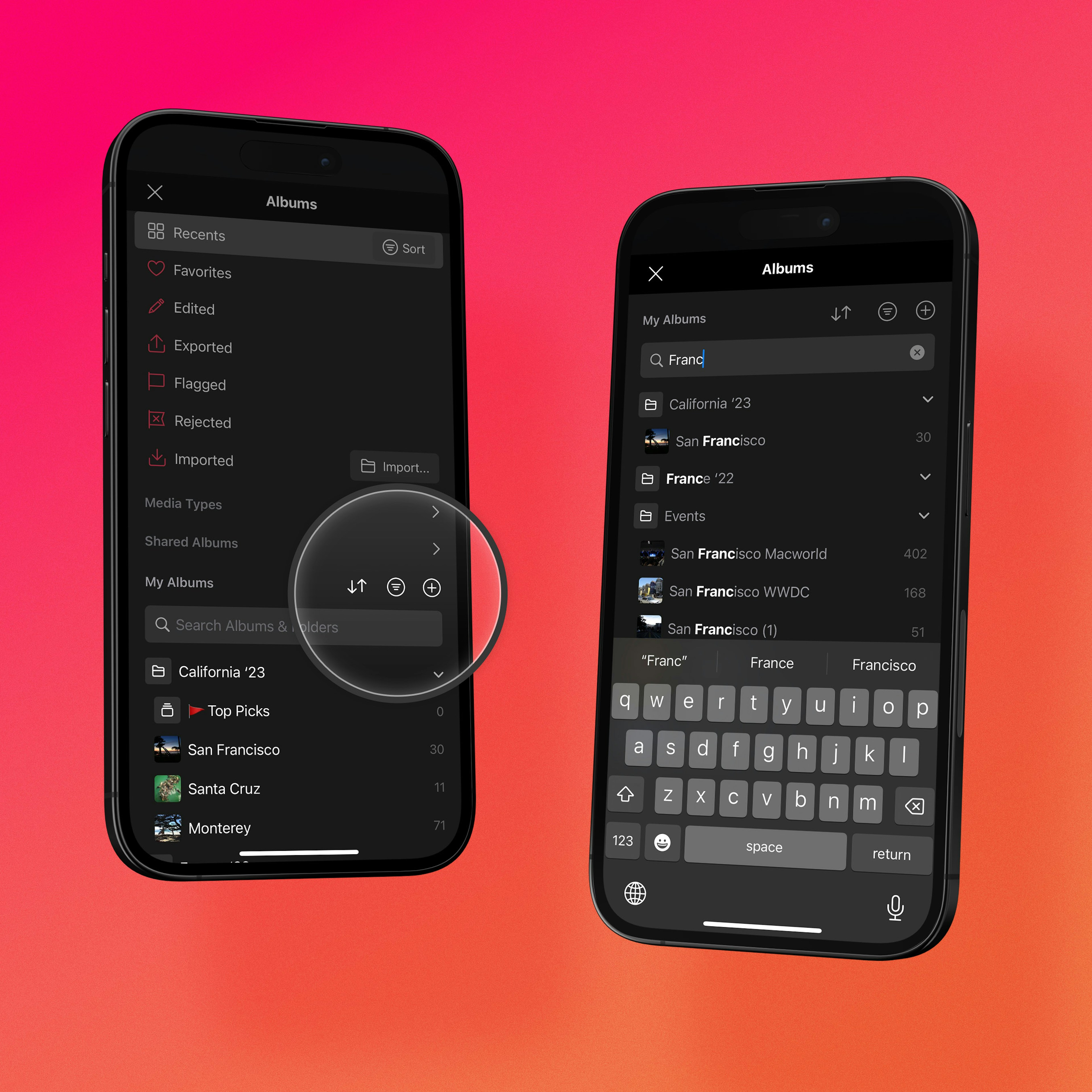
Darkroom mirrors the smart albums Apple Photos offers: Recents for your most recently added media, Favorites for anything you've hearted, and Edited for photos you've worked on in Darkroom, plus media-type collections like RAW, Videos, and Live Photos. Photos you bring in with Import collect in Imported, in the order you added them. Flag & Reject adds Flagged and Rejected albums so a culling pass has a place to land. Shared albums from iCloud sit in the list beside your own, fully browsable and editable, and your personal albums appear below the smart ones, where you can reorder them, sort them, or find one by name with the search field at the top.
Folders let you group related albums, nest folders inside folders, and drag albums between them — and that structure syncs across all your devices through iCloud. You can create, rename, and delete albums right in Darkroom: to fill an album, select photos in the grid and choose Add to Album; to clear one out, open it, select the photos, and choose Remove from Album, which takes them out of the album without deleting them from your library.
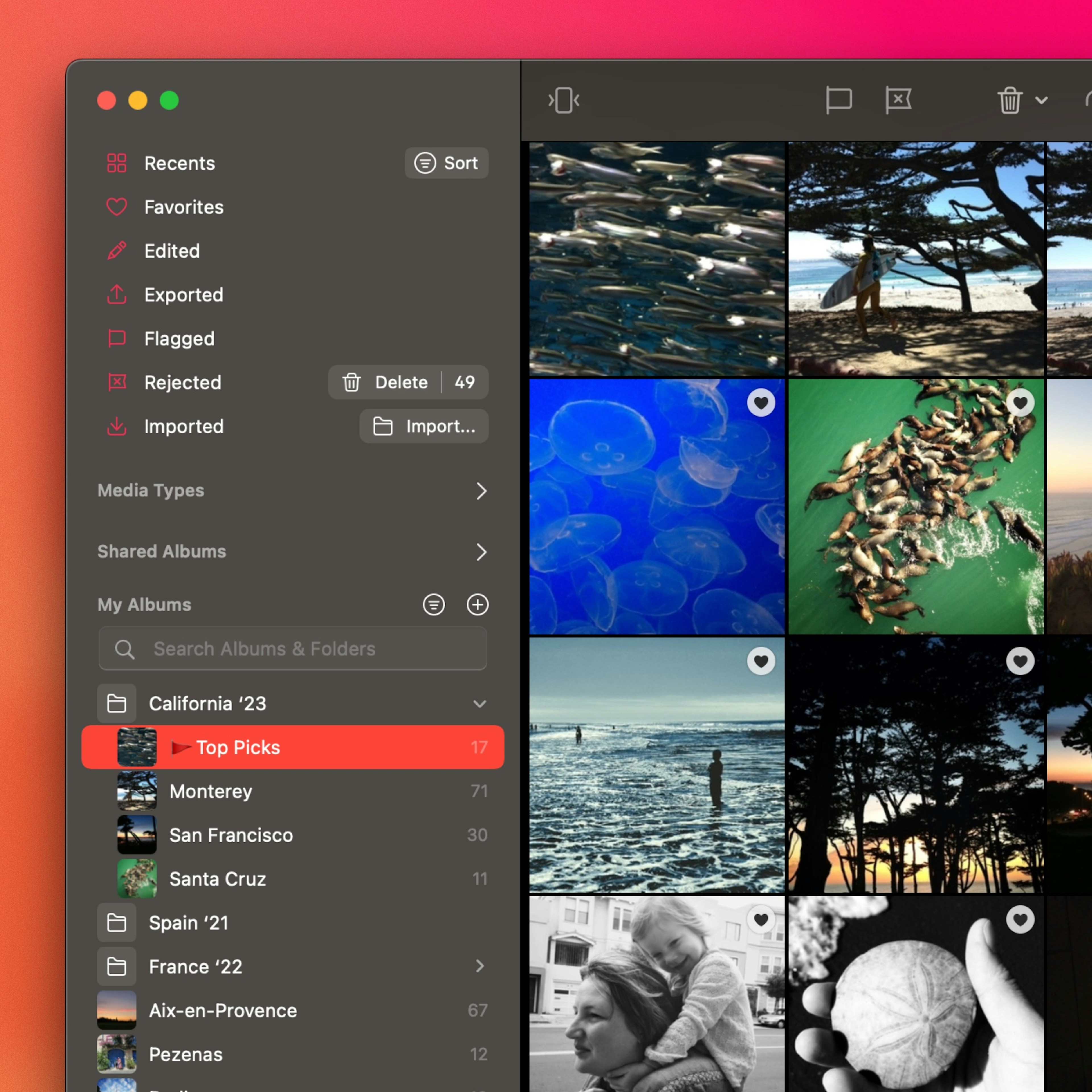
When you need photos from somewhere other than your iCloud library, the Import option brings them in through Apple's Files app, so anything connected there — a DSLR memory card, a USB drive — is reachable. On Mac you can also drag and drop photos into the library from your desktop, and on iPad you can drag photos from your library onto any album in the sidebar.
Platform differences
The library view adapts to each platform. On iPhone, navigation runs through the native floating tab bar — the album list and photo grid are separate screens, with the Library tab getting you between them in a single tap — and the grid's column count, thumbnail aspect, and sorting are all adjustable from there. On iPad and Mac, the album list appears as a sidebar beside the grid, so you can switch between albums without ever leaving the grid view.
Related
- iCloud Library — what syncs, and what stays on the device
- Import — cameras, SD cards, Files, and drag-and-drop
- Flag & Reject — culling into Flagged and Rejected
- Batch Actions — edit or export a whole selection
- Interface Overview — how the Library fits with Edit and Export