Crop, Rotate, and Transform
Composition comes first. Get the framing and geometry wrong and no amount of grading will rescue the photo — a tilted horizon or a crooked crop nags at the viewer no matter how good the color is. That's why Transform is the natural first stop in an edit, and it's the most-used tool in Darkroom for exactly that reason. Open a photo and select Transform in the toolbar.
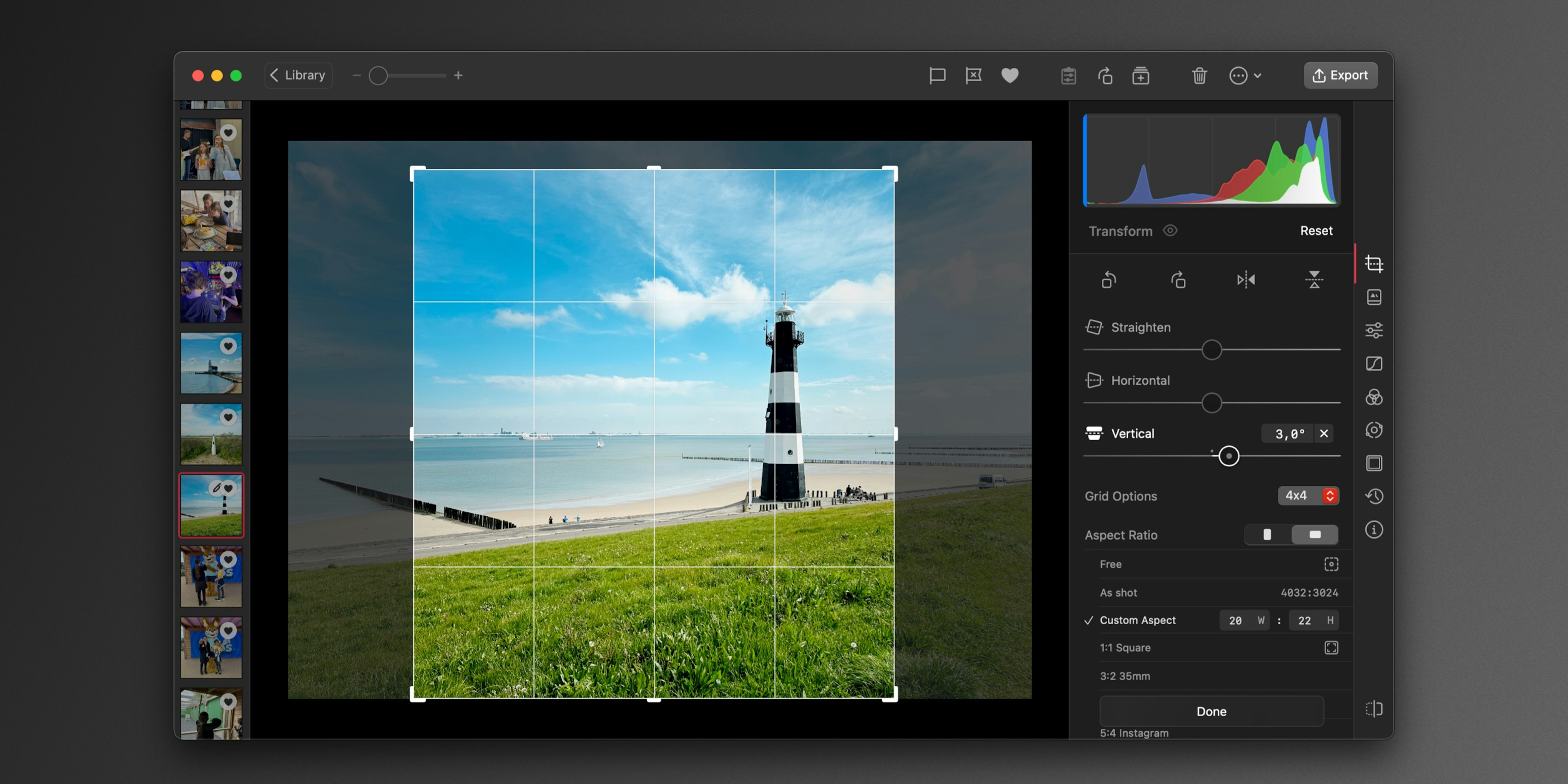
Framing and aspect ratio
Decide where the photo is going before you crop — a square for the feed, a tall frame for a story, a specific ratio for print — so you're not rebuilding the composition later. Alongside a free crop, Darkroom offers aspect-ratio presets for social, analog, print, and cinema, and you can set a custom ratio on every platform. On Mac you type or nudge the width and height with the arrow keys (hold Option for fine 0.1 steps, Shift for jumps of 10), and on any device you can tap a portrait preset a second time to flip it to landscape. As you drag, the area being cropped away is shaded so your composition stays the focus. Darkroom also remembers Free and As Shot as your preferred option when you haven't set a custom crop, so you don't reselect it on every photo.
Straighten, rotate, and flip
The straighten control levels a tilted horizon or a leaning building, and even a one- or two-degree correction makes a photo feel noticeably more polished (on Mac the angle value is editable directly). Use rotate for 90-degree turns or free rotation, and flip horizontally when a composition simply reads better mirrored — no need to rotate-and-flip to fake it.
Perspective correction
Vertical and horizontal perspective correction straightens converging lines — the keystoning you get shooting tall buildings or interiors. It's powerful but easy to overdo: push it too far and edges stretch unnaturally, so apply the minimum that makes the lines feel right, then reassess your crop, since correction changes what's in frame.
A grid to compose against
Several overlay options help you judge the frame, from a 4×4 grid for composition guidance to None for a clean, distraction-free view when you just want to see the image. Whichever you choose, a denser 8×8 grid appears automatically while you straighten or correct perspective, since that's when precise alignment matters most, and the grid fades away on its own once you stop interacting so it never sits between you and the photo. A reliable order is to straighten first, crop to taste, apply any perspective correction, then finish with rotate or flip. Keep in mind that Frames are applied after the crop in the render pipeline, so crop with the final framing in mind.
Related
- Mac Transform Improvements — custom ratios, grids, and editable values
- Image Zoom and Free Crop — where free crop began
- Histogram to check exposure once your framing is set
- Frames for borders applied after the crop