Color Grading Wheels
Color Grading is how you give a photo or video a mood. Instead of correcting what the camera captured, you decide what it should feel like — warm and nostalgic, cool and cinematic, faded and dreamy — by pushing color into the shadows, midtones, and highlights independently. It's the same technique colorists have used in film for decades, and it's the single most powerful tool in Darkroom for building a recognizable, repeatable style.
Think of the Global wheel like a pair of tinted sunglasses: drop in a warm tint and the whole scene reads like late-afternoon sun. The real magic comes from the other three wheels, which let you treat bright and dark areas differently — cool teal shadows under warm orange highlights is the look behind half the films you've ever seen.
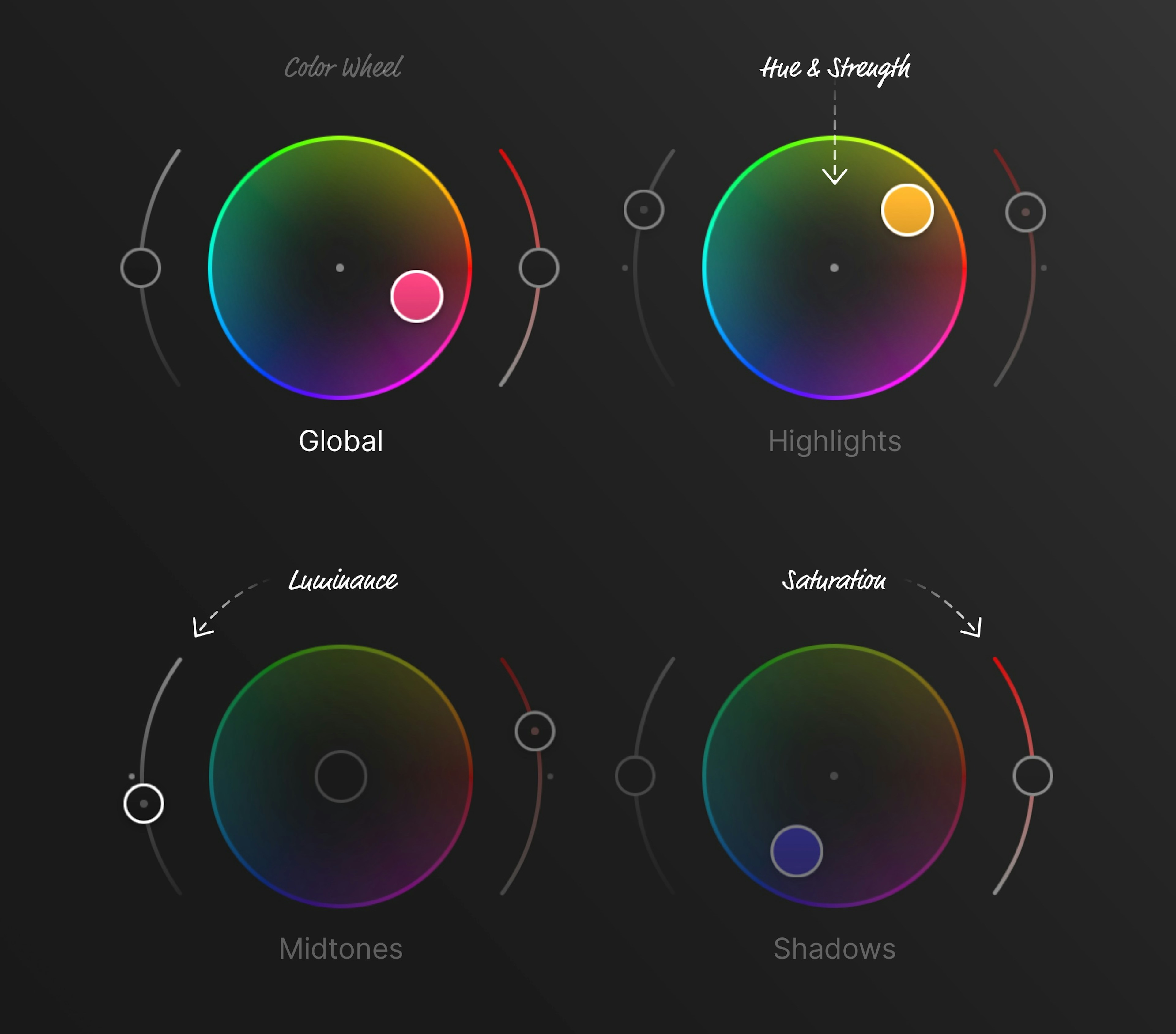
The four wheels
You'll find Color Grading in the Edit view toolbar — open a photo or video and it reveals four wheels, each targeting a specific tonal region. Drag the handle in the center to choose a hue and how strongly to apply it; the sliders on either side adjust luminance and saturation in that same region.
- Global tints the entire image at once. Reach for it first to set an overall atmosphere — purple into a sunset, orange into autumn foliage, blue into a seascape.
- Highlights color the brightest areas. Warming highlights is the fastest way to fake golden-hour light.
- Shadows color the darkest areas. Cooling shadows toward teal or blue adds depth and that filmic separation from warm highlights.
- Midtones sit in between — and this is where skin lives, so treat it gently.
Your edits stay clean
Behind the scenes, color grading adjusts each pixel based on its brightness, so the structure of your photo is preserved: white pixels stay white, black pixels stay black, and already-saturated colors are protected. You can push the wheels hard without the unnatural color casts you'd get from white-balance hacks.
Because midtones are separated from highlights and shadows, you can make your shadows teal and your highlights orange without wrecking skin tones — those live in the midtones, untouched.
Building a look
There's no single "right" grade — it depends on the feeling you're after. A few starting points:
- Cinematic. Cool the shadows toward teal, warm the highlights toward orange. Keep both subtle; the effect works because it's quiet.
- Cohesive set. Apply the same gentle Global tint across a batch of photos so they feel like they belong together — invaluable for a trip, a wedding, or an Instagram grid.
- Make a color pop. Push the Global hue toward the dominant color already in the scene to amplify it — bluer seas, greener forests.
- Fix a cast. Nudge the wheel away from an unwanted tint to neutralize it.
Small moves go a long way. Start near the center, build up gradually, and compare against the original often by tapping and holding the image. Each wheel has its own reset, so you can experiment freely and clear just one without disturbing the others.
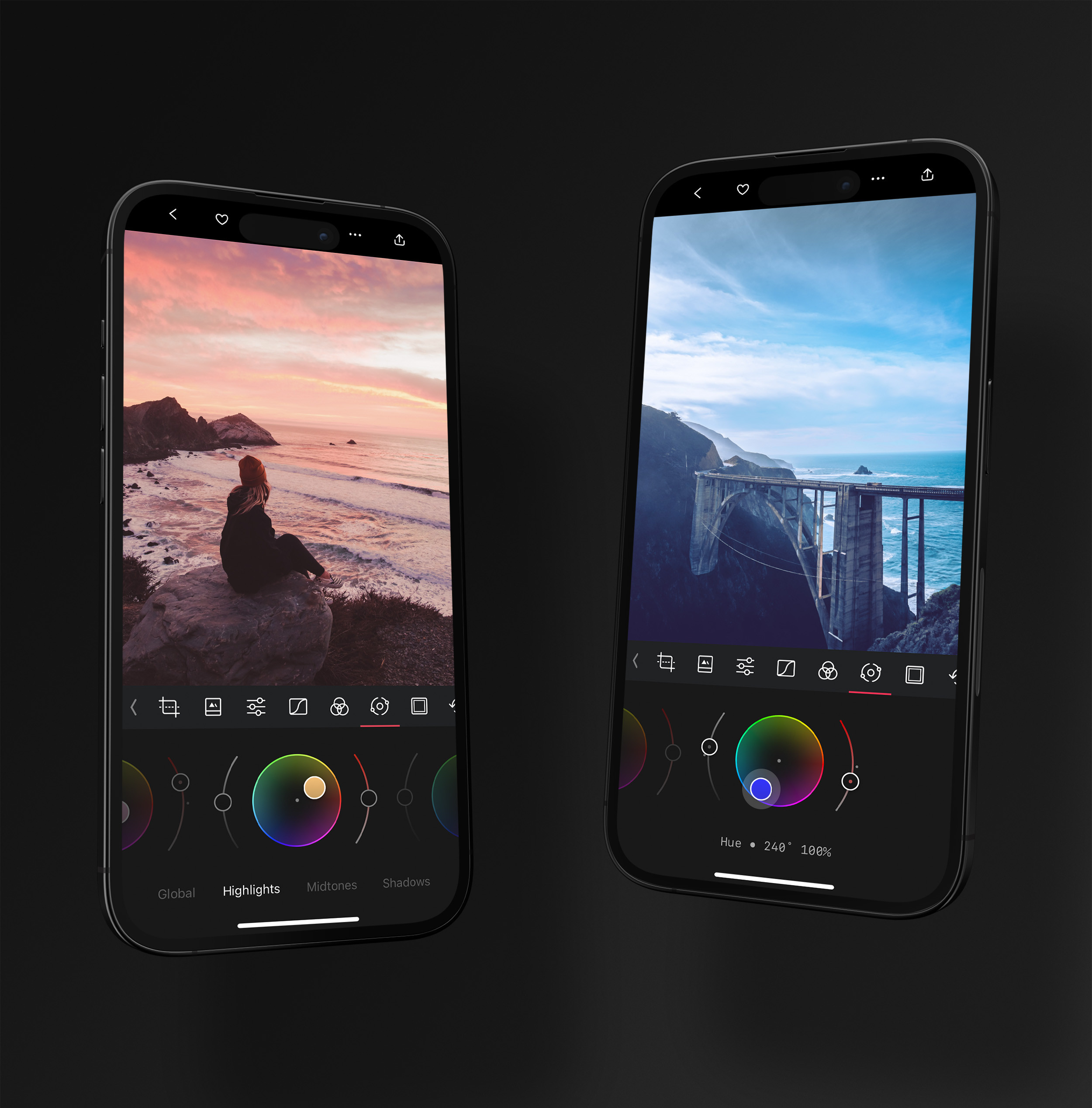
Where it shines: presets
Color Grading is where most great presets are born. Before it existed, shifting colors meant juggling white-balance sliders and individual curves — indirect, fiddly, and prone to clashing with a photo's own white-balance needs. Now brightness, saturation, and hue for every tonal range live in one place, so you can focus on the look rather than the mechanics of achieving it. Get a grade you love, save it as a preset, and apply it across your whole library in a tap.
Because grading is purely stylistic, do it last: crop and straighten first, correct exposure and white balance, then layer color grading on top as a finishing pass.
Related
- Color Grading comes to Darkroom — the original announcement, with examples
- Adjustment Sliders for exposure and white-balance groundwork
- Curves and Color (HSL) for more precise color control
- HSL Curves for continuous hue, saturation, and luminance relationships
- Presets to save and reuse a finished look