Batch Actions
Most of Darkroom is built around one photo at a time, but real libraries don't work that way — you come home with forty shots from the same afternoon, all needing the same crop, the same look, the same album. Batch actions are how you handle a set as a set: select once, then apply an edit, an organizational change, or an export to everything you picked in a single move.
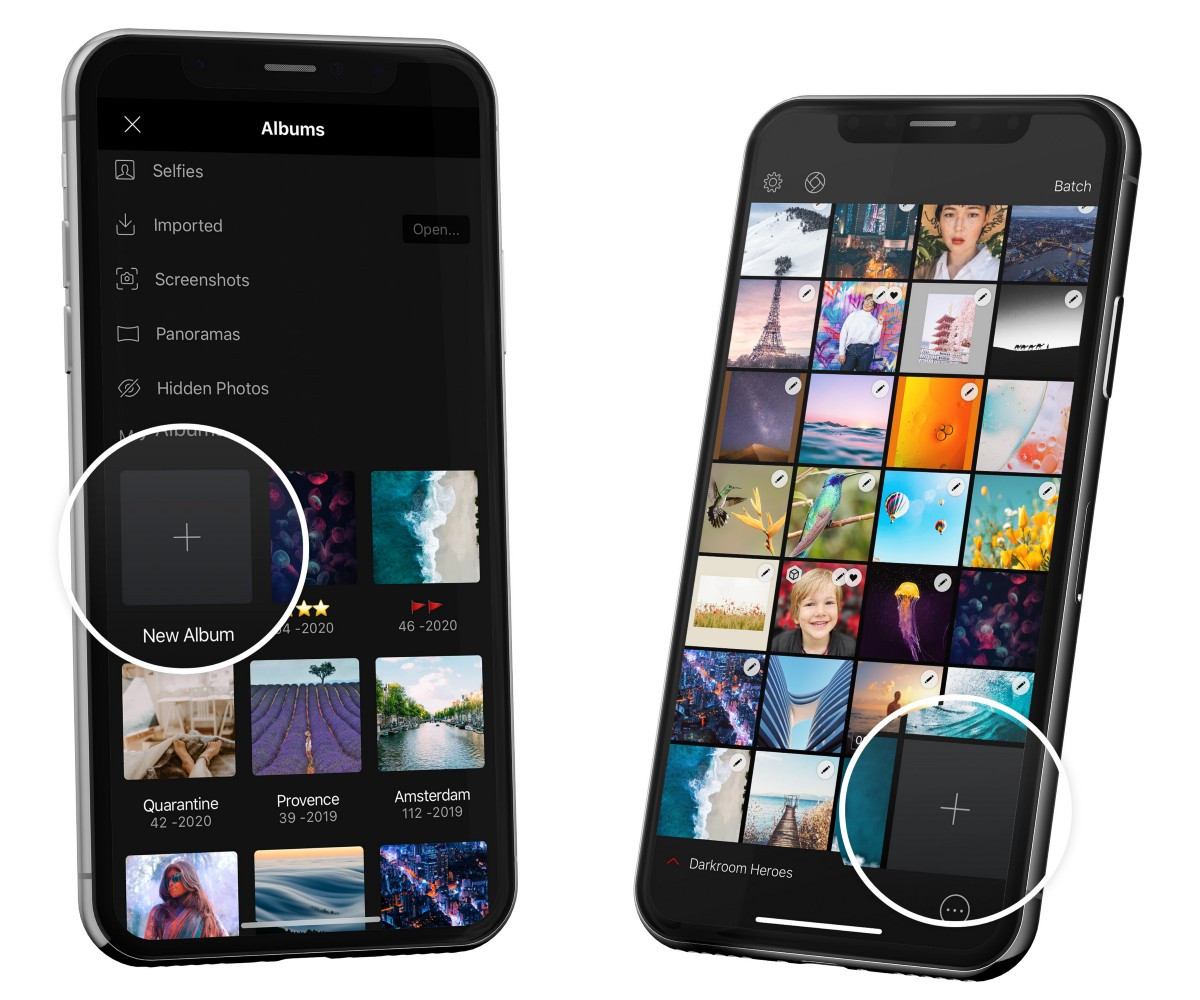
It starts with selection, and the gesture depends on your device. On iPhone, start a selection from the library grid and tap the thumbnails you want — or swipe across several to grab a range quickly, which is much faster than tapping one at a time. On iPad and Mac you can hold Command and click to pick individual photos, Shift and click to grab a span, or use the same Select flow as on iPhone. When you want the whole album, Select All is the shortcut — handy for exporting an entire shoot or applying one edit across all of it. Once anything is selected, the batch actions bar appears (at the bottom on iPhone and iPad, in the toolbar on Mac).
Editing a whole set at once
The most powerful batch action is Copy & Paste Adjustments. Edit one photo until it's right, copy its adjustments, then paste them onto the rest of your selection — and when you paste, you choose which adjustments carry over, so you can push just the color grading across a set while leaving each photo's individual crop alone. It's the single best way to give a trip, a wedding, or a feed a consistent look without redoing the work. When a set needs to go the other direction, Reset Edits returns every selected photo to its original state, and Rotate turns the whole selection ninety degrees at a time.
Culling and organizing in bulk
Batch actions are just as useful for the unglamorous work of sorting a library. You can Flag or Reject an entire selection at once to drive a culling pass (see Flag & Reject for the full workflow), Favorite or Hide groups of photos, and Add to Album to file a selection into an existing album or a brand-new one on the spot — the heart of fast album management. Duplicate makes copies of everything selected when you need working variants. All of it syncs straight back to iCloud Photos, so the structure you build here shows up everywhere.
Exporting and deleting
When a set is finished, Export sends every selected photo out at once using your current export settings — the natural endpoint for a batch that's been edited together. And Delete removes the whole selection from your library; rather than vanishing, those photos move to Apple Photos' Recently Deleted album, where they linger for 30 days before they're gone for good, so an accidental bulk delete is recoverable.
Automate the repetitive runs
When a batch routine becomes something you do constantly — same crop, same frame, same watermark, same destination — it's worth handing off to Shortcuts automation. Using Siri or the Shortcuts app, Darkroom can take or edit photos and videos, apply a look and adjust its intensity, crop, frame, watermark, and then save or upload the result to any platform, all without manual tapping.
Related
- Flag & Reject — the culling workflow batch selection feeds
- Library View — browsing and organizing your photos
- Export, Save or Share — what a batch export produces
- Shortcuts Automation — automate repetitive batch routines