Masks & Local Adjustments
Most edits change the whole frame at once. Masks let you change part of it — brighten just your subject, pull back just the sky, warm just the foreground. This is the step that separates a corrected photo from a deliberate one: by lighting some areas and quieting others, you guide the viewer's eye exactly where the story is.
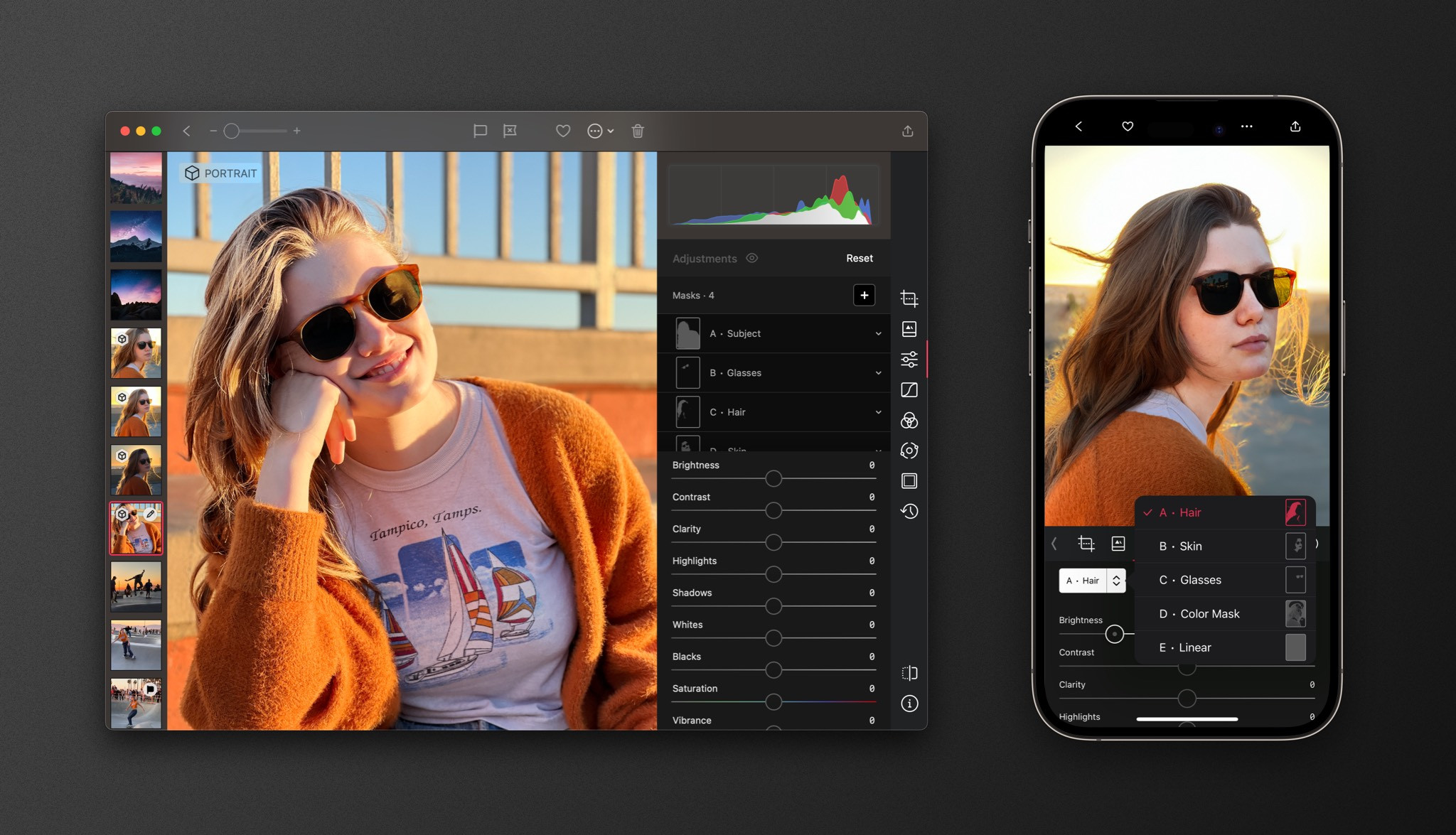
Open a photo, tap Masks in the Edit view toolbar, and add a mask with the + button. Every mask carries its own full set of adjustments, so you can stack several — each doing one job — and see them as preview thumbnails in the mask list. Masks are a Darkroom+ feature; foreground and background editing on Portrait photos remains free.
Masks that understand your photo
When you open a photo, using AI, Darkroom builds understanding of the scene right on your device — privately, and fast enough to fit your normal workflow. That powers a set of automatic masks that used to require painstaking manual selection:
- Subject isolates the main subject so you can make them pop. Foreground and Background split the scene front-to-back, ideal for separating a person from their surroundings.
- Depth Range targets a slice of distance in the scene, and can be inverted to edit everything except that slice.
- Smart Masks on Portrait and ProRAW photos go further still, isolating Sky, Skin, Hair, Glasses, and Teeth where the capture data supports it. Drop Clarity inside a Skin mask to smooth complexion while keeping eyes and hair crisp, or brighten Teeth a touch for a portrait at someone's best.
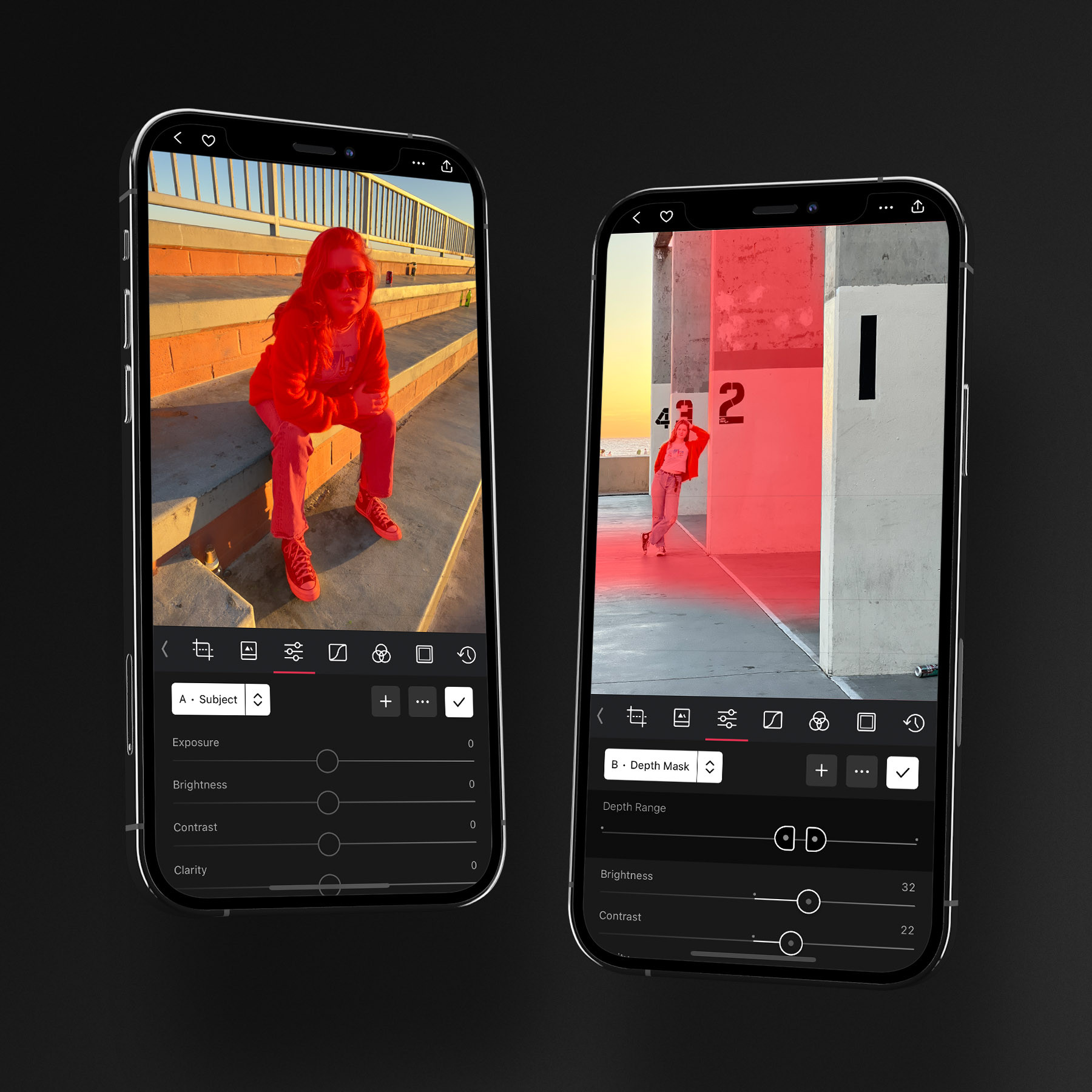
Depth Range, Foreground, and Background are built from Depth Anything, a model Apple provides. It runs on your device, and the photo stays there. The estimate holds the detail that is hardest to select by hand: busy backgrounds, hair, foliage, and a subject that doesn't separate cleanly from what's behind it.
Masks you draw and define
When you want to place a selection yourself, two families cover almost everything:
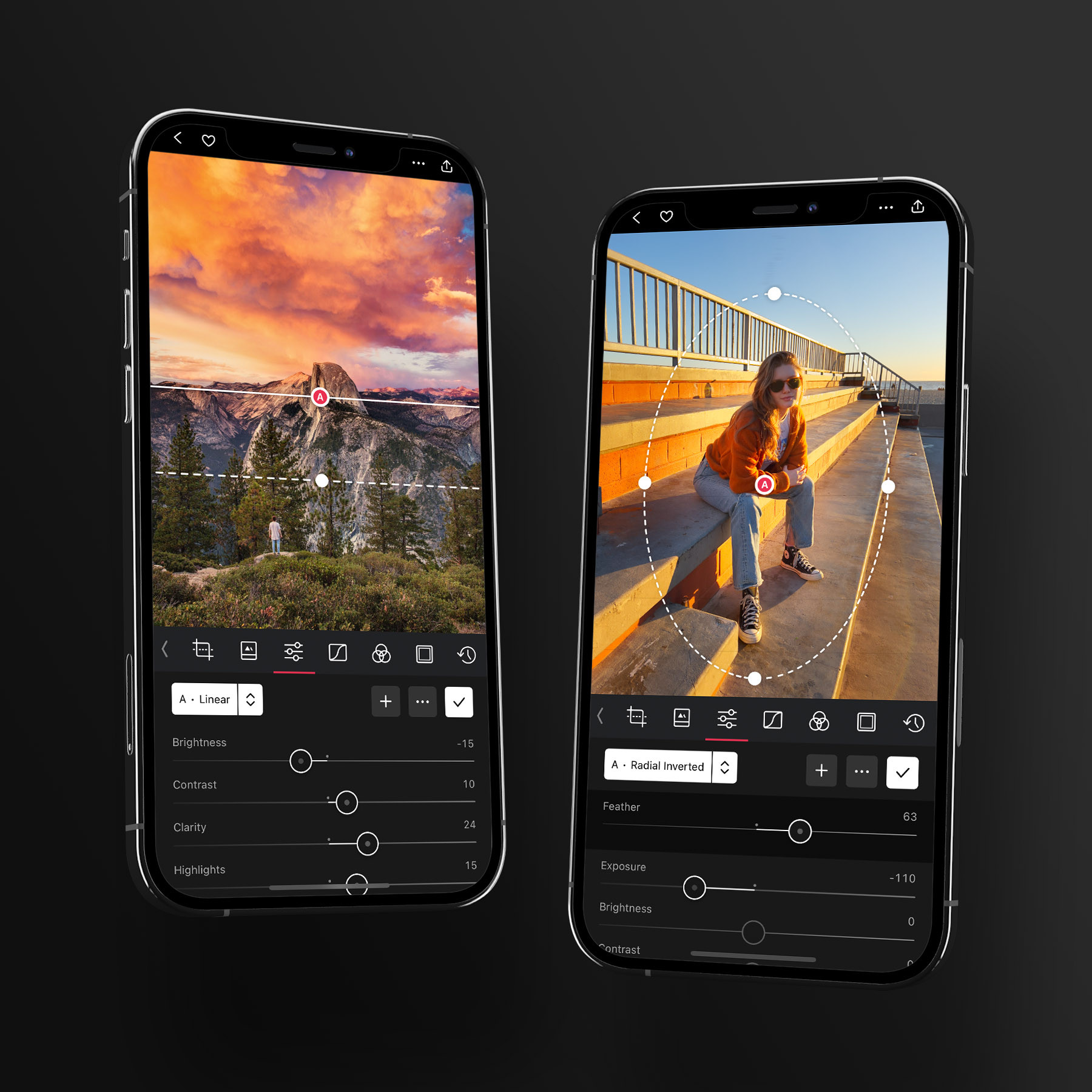
- Gradient masks — Linear for skies, horizons, and foreground falloff; Radial for subjects and vignette-style attention, with adjustable feathering and the option to invert so you edit everything outside the oval.
- Range masks — Color Range selects by hue (widen the range to pull in neighboring colors), and Luminance Range selects by brightness, so you can target only the bright or only the dark pixels.
The real power is combining them. A Linear mask plus a Luminance Range edits only the bright sky and leaves the horizon untouched; a Color mask plus a Luminance mask catches only the bright blue pixels; Subject plus a little Clarity and Exposure lifts a person cleanly off their background.
Controlling how a range mask fades
Selecting the right pixels is only half the job — how the selection fades at its edges is what decides whether an adjustment looks deliberate or obviously masked. Depth, Luminance, and Color Range masks all support customizable falloff on both the lower and the higher end of the range you've selected, independently.
That independence is the useful part. You can hold a hard edge at one end of the range while letting the other end drift out gradually — protect deep shadows with a sharp lower boundary, say, while a soft upper falloff lets a highlight adjustment blend into the midtones with no visible seam. In practice it means you can isolate a tonal band without creating a hard transition, push a single color while leaving neighboring hues untouched, or refine a depth selection so it fades naturally into the distance rather than stopping at an invisible wall.

The habit worth building: when a local adjustment looks fake, the problem is usually the falloff rather than the strength. Widen the transition before you reach for a smaller value.
Working with masks
Each mask's actions live behind the ••• button: add, invert, delete, or reset just that mask's edits. Duplicating comes in two flavours, and the distinction saves real time — duplicate and invert gives you a complementary pair, which is the fast way to grade a foreground and background against each other, while duplicate without inverting gives you a straight copy to adjust from, useful when you want two similar selections that differ only slightly.
You can also stack multiple masks of the same type on one photo, each independently invertible — two radial masks lifting two faces in a group shot, or a pair of luminance ranges doing different jobs at different ends of the histogram. Every mask carries its own full set of adjustments, including Sharpness, so detail can be pushed in one region and left alone everywhere else.
The workflow that holds up best is to correct the whole image globally first, then add your most impactful mask, then smaller supporting ones — keeping each adjustment subtle, since local edits stack into something artificial fast. If a masked look travels badly to another photo, use selective paste in History to copy your edits without the masks.
One more thing worth knowing if you place a lot of gradient masks: you can zoom out past "fit to view," which makes it possible to position Linear and Radial masks from outside the frame — handy when you want a gradient to originate well beyond the edge of the photo.
Frequently Asked Questions
Do masks require Darkroom+?
Masks are a Darkroom+ feature, with one exception: foreground and background editing on Portrait photos remains free. As with every premium tool, you can build a full masked edit without a membership and see exactly what it looks like — a membership is what's required to export it.
My masked adjustment looks obviously fake. What's wrong?
Nine times out of ten it's the falloff, not the strength. Widen the transition at the edge of the selection before you reduce the adjustment — a correctly-graded fade will let you keep a much stronger edit while still looking natural. Correcting the whole image globally first also helps, since local edits stack into something artificial quickly.
Can I use more than one mask of the same type?
Yes. You can stack multiple masks of the same type on one photo, and invert each one independently — two radial masks lifting two faces in a group shot, for example. Each mask carries its own complete set of adjustments.
Why do my masks look wrong after pasting edits onto another photo?
Because a selection that fits one frame rarely fits the next — a subject mask in particular is tied to where that subject was. Use selective paste in History to carry your adjustments without the masks, then add masks per photo.
Why don't I see Sky, Skin, or Teeth masks on my photo?
Those Smart Masks depend on capture data that only Portrait and ProRAW photos carry. Subject, Foreground, Background, and Depth Range masks are generated for any photo, so those remain available.
Subject or Background is missing on a RAW photo.
A large camera RAW can use enough memory that Darkroom can't build Subject, Foreground, or Background masks, especially on a device with little free memory. The photo still edits. Try the same file on another device, or edit a JPEG alongside it, when you need those masks.
Can I blur the background?
No. Darkroom doesn't have a blur slider. On a Portrait photo, adjust depth blur in Apple Photos — Apple's Portrait guide shows where. A Background mask can still change that area's brightness, color, or clarity. That softens or shifts it; it does not blur it.
Related
- Make Local Adjustments with Masks — the full feature tour
- Liquid Glass for iPhone — depth estimation and range-mask falloff
- Mask Previews — telling stacked masks apart
- Portrait editing — for a mask-driven portrait workflow
- Adjustment Sliders — the edits you apply inside each mask